Showing posts with label Eco-Friendly. Show all posts

Monday, September 12, 2011

12-Year Old Environmental Speech in ECO92

It's been almost 20 years since then 12-year old Severn Suzuki stunned the 1992 Earth Summit in Brazil with her ~6-minute speech. Her words still hold true today! The video of her speech has since gone viral and, deservingly so, is now known as the "The Girl Who Silenced the World for 6 Minutes."


Link: http://www.youtube.com/watch?v=xPx5r35Aymc

The music, and some of the photos, make this harder to watch than it should be. Putting that aside, her message is very inspirational. What do you think? Tell us in the comments. I also invite you to share with us any inspirational video/audio, which we may feature here on Ahmadism.com.  ▣

Click here to see Monday-only posts.

Monday, February 22, 2010

The Bloom Box: Green Energy for the Future


As many of you have noticed, I've taken some unexpected time off. I'm back now and hope that it doesn't happen again. I missed blogging.

Today's inspirational Monday post is about green energy. Yes, it's a buzz phrase that's makes its rounds every now and then; but this is in line with well deserved mention of The Winds of Change.

The Bloom Box:  Green Energy for the Future


One of those blocks he's holding can power 4 to 6 Indian homes, one home in the UK or two blocks to power an American home. At least that's the claim being made by K.R. Sridhar, founder of Bloom Energy, on 60 Minutes last night. On 60 Minutes, "K.R." confesses that this was an oxygen-generating project built for a scrapped NASA Mars program. He reversed the process, and now instead of producing oxygen the new contraption, the Bloom Box, takes in Oxygen, mixes it with chemicals, resulting in a fuel-cell, which outputs electricity.

I would love to sit here and sound like I know what I'm talking about when I don't. Instead, I urge you to see the video.


In a day and age where one would think that all things have been invented & discovered, we are still surprised with things like liquid glass, wireless electricity and the Bloom Box.  ▣

Click here to see Monday-only posts.

Monday, December 14, 2009

Blake Mycoski: Creating Sustainable Charity


Ahmadism supports TOMS shoes.
By now, the mission of TOMS Shoes is well known: When you buy a pair of their shoes, you help provide a child in need with new shoes. It's called the "One for One" movement and it has helped the company emerge as a leader in conscious consumerism.

When it's a holiday season for you and yours, TOMS is asking you to "choose Shoes" for the occasion. Forget holidays; whether it's a gift for yourself, a friend, or someone in your family, giving TOMS Shoes this holiday also means that a child will receive a present that will help them grow up healthy and happy.


Link: http://www.youtube.com/watch?v=ysE2VlyvdnI


TOMS "One for One" is not a gimmick intended to boost holiday sales. Instead, it is the basis of the company's business model. Blake Mycoski didn’t just want to start a charity to put shoes on the feet of children who needed them — he wanted to do something more sustainable, something that didn’t rely on asking for donations.


Link: http://www.youtube.com/watch?v=Kt3BQQ6dQaQ


Innovative thinking, running a for-profit business and giving globally can all coexist ... and inspire others in more ways that one.

Got an inspirational story to share, please let us know in the comments.  ▣

Click here to see Monday-only posts.

Monday, December 7, 2009

An Innovative Pizza Box


Cardboard pizza boxes don't fit easily in trash and recycle bins, and many recyclers don't accept them because of the food residue or awkward size. They aren't necessarily easy to break down, and they can leak grease unto your floors or on your clothes.

Innovative folding pizza box


Earlier this year, a New York City-based green design firm --Environmentally Conscious Organization, inc. (eco for short) -- has a so-simple-it's-genius solution: the Green Box! The concept looks like a standard cardboard pizza box that comes pre-perforated.

Innovative folding pizza box

Innovative folding pizza box


When your pizza arrives, you can easily tear the top of the box into four makeshift disposable plates. The bottom of the box is also perforated on the edges and down the middle, so you can easily fold that part into a small container that fits a few slices --giving you a convenient place to store leftovers in your fridge, without having to juggle around everything else. In fact, the leftover box is a pinch less than half the size of a full pizza box.

Innovative folding pizza box

Innovative folding pizza box


And perhaps the best part of this patented invention is that fact that the Green Box is made from 100% recycled cardboard. There is also the option for a vegetable-based coating.

Here's a video of the product:


Link: http://www.youtube.com/watch?v=gQBjJjpkjl0


"Our goal is to increase the functionality of packaging and to eliminate or reduce follow-on waste [additional materials like tin foil, plastic bags or plastic wrap]," eco inc.'s Jennifer Wright recently explained about the Green Box, her company's first product. Since consumers have a built-in storage device for any leftovers, they won't need to fool with extra materials. And since the box can become handy serving plates, that will cut down on water and energy needed for dish washing.

Whether or not the pizza box, aka the "green box," is actually green seems to be a point of debate as of late. You can learn more about that here (be sure to read the comments). In my opinion (IMO for the new O.M.G. generation), for a box that hasn't seen any change in decades, this innovative approach is very inspirational.

See Wright present the pizza box here at what appears to be a trade show of sorts, and listen for the crowd when the demonstrator (Ned?) shows the storage & bottom part of the box:


Link: http://www.youtube.com/watch?v=OMDmp-cR4I0


Wright (one of three partners at eco inc.) explains that since the Green Box is made out of standard pizza box material, there is no need for retooling factories or changing the way pizza shops do business. In fact, she says that the boxes can be purchased for the same price as -- or possibly less than --conventional boxes, since according to Wright the recycled pulp costs less than the virgin pulp.

Innovative folding pizza box


The Green Box can also be used as marketing for pizza shops, who can tout the greener footprint, as well as innovative packaging and (at least for a while) novelty.

Innovative folding pizza box


"Three billion pizza boxes are used in the U.S. every year," said Wright. "If you stacked them on top of each other, in two years you'd reach the moon…We feel like we're doing our part for the environment, one pizza box at a time."  ▣

Click here to see Monday-only posts.

Tuesday, November 3, 2009

Tips for Browsing & Working Faster


Fast Typing
As someone who does most of his work online, the browser has become the cornerstone application I run at all times. And being in technology for almost 15 years, I can't help but notice some of the browsing habits that my family, friends and colleagues have. In most cases, I'm their tech support and their first line of defense for most of their PC needs (purchase, how-to, strategy, approach, web site, email, etc.). So, I wanted to write a few browsing (and some non-browser) tips to help speed things up and help all to not only be speedier, but more productive.

It is worth mentioning (up front) that these tips are derived from my own personal style, and may not all work for you. However, I'm hoping that at least a few of them will come in handy and perhaps help you develop your own style. Since the objective of these tips is to be speedy and more productive, it should come as no surprise that this means I rely on the keyboard for most of them (instead of the mouse) minimizing "lift." That is, the act of lifting my hand and going to the mouse to only click on something once and allow me to resume typing. A perfect example of this is the URL bar/field. Many take the mouse to click on that field so that they could type away the URL in mind. I'm getting ahead of myself, but I figured an example is in order.

The Browser Itself


I wouldn't be surprised if the main application most of us use in today's age is the browser. Heck, I'm willing to go as far as suggesting that the browser is the new operating system (OS) of today. And your choice of browser says a lot about you, your browsing habits, and a whole lot more. Let me be short, sweet and to the point and say that if you're using Internet Explorer (IE) and you don't really have to (because of your work's IT, etc.) then do us all, and do yourself, a favor and switch. And if you're on IE6, then know ahead of time that you'll have to choose a side. Yes, it's that serious. Personally, I use Firefox. And if I wasn't, I would use Google Chrome. Why? Well, the number one reason I use Firefox beside the its compliance with the standards out there is its add-ons and extensions. There are some I simply would rather not work (or live) without.

Keyboard Shortcuts


As I previously mentioned, avoiding that reach to the mouse is sure to save you time and help accomplish things more efficiently. Addressing my earlier point, seeing a professional reach for the mouse and clicking on the URL bar only to type "www.google.com" kills me. Within most browsers (yes IE too), you can alt+d to put the cursor within the URL bar highlighting the entire current URL ready for you to type over it with what ever your heart desires. Besides copy (ctrl+c) and paste (ctrl+v), going to the URL is the next most common thing ... heck, I think it may even beat copy & paste.

Keyboard Shortcuts

While we're at it, you don't really need to type "www." and the ".com" at the end. Just type (in the example I used of going to www.google.com) "google" and hit ctrl+enter. That combo adds "http://www." before the string and ".com" after the string. The string being the "google" part.

Here's a list of keyboard shortcuts that apply to most browsers, but are listed here with Firefox in mind (yes, I'm bias):
  • Go back one page in history: Backspace [or Alt + Left Arrow]
  • Go forward one page in history: Shift + Backspace [or Alt + Right Arrow]
  • Home Page of browser: Alt + Home
  • Reload current page: F5 [or Ctrl + R]
  • Stop loading current page: Esc
  • Page down (i.e., scroll down) in current web page: Spacebar
  • Page up (i.e., scroll up) in current web page: Shift + Spacebar
  • Go to bottom of current page: End
  • Go to top of current page: Home
  • Zoom in (i.e., increase text size of page): Ctrl + =
  • Zoom out (i.e., decrease text size of page): Ctrl + -
  • Find a word in current page: Ctrl + F
  • Find again: F3 [or Ctrl + G]
  • Find Previous: Shift + F3
  • Print current page: Ctrl + P
  • Bookmark current page: Ctrl + D
  • View Page Source: Ctrl + U
  • New Tab: Ctrl + T
  • New Window: Ctrl + N
  • Close Tab: Ctrl + F4 [or Ctrl + W]
  • Close Window: Alt + F4 [or Shift + Ctrl + W]
  • Select Tab (1 to 8): Ctrl + (1 to 8) [for example, to select 2nd Tab: Ctrl + 2]
  • Select Last Tab: Ctrl + 9
  • Toggle Private Browsing: Ctrl + Shift + P
  • Select location bar: Ctrl + L
  • Select search bar: Ctrl + K


This keyboard shortcut list does not do it justice. My favorite list can be found here.

Don't expect to memorize half of them. Simply refer to the shortcuts and use them; and you'll learn them in due time. Despite my technology tenure, I learned one keyboard shortcut today, for example (shift+spacebar).


Use Tabs


I remember once reading something similar to the following line (I'm adapting it a bit): If the browser is the new operating system, then the tab is the new system process, and the tab bar is the new taskbar. There are always reasons to launch a new browser window, but for the most part try and use tabs whenever possible.

There are many add-ons (for Firefox) that help optimize tabs and their use. Most should know how to open a link in a new tab (just right-click the link ... when in doubt, right-click). As evident by the keyboard shortcuts, there's always more than one way to do the same thing. So look it up and see if using it works for you ... but be fair, give it some practice first. When I don't have a link but know my URL, I simply ctrl+t (open a new tab), type the main domain name & hit ctrl+enter to make it a .com url with the www part and I'm off to go. It's longer to read (and type) than to do, I assure you.

Get Organized


Organize your bookmarks in folders. I know that many use outside social bookmarking sites, and even local bookmarking is usually heavily tagged (meta-data); but I still think folders in this case (for bookmarks) rule. And I recommend creating as many of them as you can. Later, if you're serious about organizing, you'll find yourself consolidating some of the folders or even nesting some within others. The end result, in all cases, should be a more organized browser, a more accessible list of links and more efficient cataloging.

For example, I have a bookmark folder sitting on my Bookmarks Toolbar called E-Mail. In it are all the email sites I visit (gmail.com, mail.yahoo.com, hotmail.com, etc.). Another easily accessible folder (although this need not be this accessible) is a folder I created called Bookmarklets. More on those in a little bit. Another folder, again on the Bookmarks Toolbar, is (replaced with the company for whom I'm working). In it are links to the intranet, and several other internal links. In this same folder, I also keep the external and internal links (when they're different) to access my mail over the web. The next point should tie nicely with the reason behind this madness.

Use Keywords on Your Bookmarks


I don't use this as heavy, or even in the same way as most people do. Let's first talk about what they are: Once a bookmark is created, you can go back to it, go to its properties and see a field called "Keyword." It is in this field where you can set a small word or phrase (I'd keep it concatenated) to use instead of the actual bookmarked URL itself. Let me elaborate ... Let's say you bookmarked "http://mail.yahoo.com." Then you go give put "ym" as the string in the Keyword field. Now, all you have to do is type ym in the URL bar and hit enter. Circling back to the keyboard shortcuts, you would do alt+d then ym and enter; and voilĂ , you're at Yahoo! Mail. Of course, you can make your keywords as long or as short as you need them to be.

But where this is the most handy is with longer URLs that you want to bookmark. For me, the longest URLs I seek the most are bookmarklets. Excellent segue into the next section ...

Use Bookmarklets


I don't like to use toolbars outside of what came native with the browser. Heck, even that I butcher to maximize my browser real-estate on my old laptop (a used Dell Latitude D505). I don't install the Google Toolbar, the Yahoo! one, or any other. Toolbars will slow your browser down and are a security risk I'm simply not willing to take. Don't get me wrong, there are a few especially for developers that are absolutely amazing. Nope, I don't use those either. If I had a browser that had them, I'd have them disabled most of the time.

So what do I use instead? Most of what I need, and most of what the toolbars do, can be done with bookmarklets. Bookmarklets are basically JavaScript that calls that have been bookmarked. For example, javascript:alert("hello world"); is technically a link that can be bookmarked. Many sites offer bookmarklets that you can drag to your toolbar for later use.

JavaScript is used on most web pages. Those JavaScript bookmarklets allow you to run your own "manipulations" against the page that you're currently on/viewing. For example, you can force most pages to have a black or white background using a bookmarklet. Amongst such bookmarklets are the ones from such social bookmarking tools I previously mentioned, like Delicious, Tumblr, and others. Amongst my most used bookmarklets are URL shorteners. They not only provide a shorter URL for whatever I want to send out, but tracking (if you're logged in ... free account) all those URLs as well. I digress. You can read more about it here.

Now that I have my bookmarklets, I organize them in a folder called just that (see above), and then I assign my most used ones a keyword of their own to make accessing them a breeze. Like the Yahoo! Mail bookmark, now I can invoke a bookmarklet with alt+d, , enter.

Bookmarklets is what I use the most. And if you've been following my articles, you'll know I'm a bookmarklet-collecting freak. And I use a lot of them. I love the ones that help me read or watch YouTube by dimming everything else (two different bookmarklets). I use bookmarklets to help me write my blog (masking images and aligning them), to QA, to test accessibility, etc. There are many server services, with URLs, out there there that you could pass a URL to (like the current URL of a page) to do something with the page for you. Among such services is PrintWhatYouLike. I know this is not a bookmarklet article, but assigning such a bookmarklet a keyword and using it can have green implications (saving ink and printing paper).

A Couple of Words on Bookmarking ...


Where many use Delicious, Tumblr, or even others like Google Bookmarks and Instapaper, I've not been able to make that jump yet. Perhaps it's because I use Xmarks (formerly known as Foxmarks). Xmarks syncs my bookmarks and allows me to choose which ones are visible/accessible on different profiles. So my "work" profile only shows these folders, and not these others. I could also always go to xmarks.com and access my bookmarks from any computer with internet access.

I do, however, use photo/image bookmarking through a 3rd-party. Where most use such services as vi.sualize.us, I've found myself in love with weheartit (pun intended). I've added their bookmarklet to my collection, made sure it's in my Bookmarklets folder (organized) and have assigned the keyword "loveit" to it. Now, when I'm on a page/site that contains an image or a photo I like, I simply alt+d to go to the URL field, type loveit and hit enter. I then pick the image on that page that I want to "bookmark."

Other Browser Tricks


There are other tricks you can use to boost the likes of Firefox, which you can find here (speeding Firefox itself), extensions and add-ons that are highly recommended, and finally hacks to Firefox's configuration.

These are all things you can do to enhance Firefox. The bulk of the browser tips (and most are generic to apply to other browsers as well) came before the last paragraph, and they are discipline-based with a few technical ones here & there to help you along the way.

Outside of the Browser World


I'll try and be brief here. I find myself often needing to take a note. Nothing elaborate. I'm usually jotting a phone number down (although I do a lot more ... like this entire article), and I usually need it quick ... like NOW! My application of choice is Notepad. But in the spirit of keyboard shortcuts, I do not click on the start menu, find all programs, accessories, yada yada. Instead, I type ctrl+alt+n. That's the shortcut key I've assigned Notepad. I've also assigned one to the calculator (ctrl+alt+c). Now I'm only 3 -key presses away from getting what I need done.

Notepad Shortcut

There are many other things/quirks I do to help me work faster and being more productive. One overlooked item that I use almost always is alt+tab to switch/cycle amongst running applications within Windows. I cycle through tabs, since the browser is the bulk of what I use, with ctrl+tab. Sometimes, it's easier for me to do ctrl+1 for the 1st tab. On many occasions, I find myself guessing the number of the tab (hmm, it's about the 6th open tab so ... ) ctrl+6. All it does is bring focus to that tab. No harm with being wrong. I just adjust the number based on how close I got.

Using services that consolidate multiple touch points for you will inevitably, and perhaps by definition, help you work faster & better. Many of us use instant messengers like Yahoo! IM, AOL IM (AIM), Facebook chat, MSN, GTalk, Jabber, etc. But we also use Twitter, check our email, Facebook, LinkedIn, etc. I use one application for them all: Digsby. It's a standalone application that's not browser based (must install it on Windows), but it's free and worth it if it was not.

Another highly recommended tools to help you work faster, better and be more productive include password managers like 1password and KeePass. Combining their use with your browser life and perhaps some cloud computing services (umm, like Dropbox ), and you'll quickly be armed with security on the go. Read more about that here.

As you can see, what you use outside of the browser (like to listen to your music, to watch video, etc.) can also help you be more efficient. Naturally, not all things that consolidate are worth a lick. Some things are best left separate.

That's the tip of the iceberg for my style and what I do. What's yours? I would love to learn new tricks (wuf wuf). Share them with us in the comments.  ▣


Click here to see Tuesday-only posts.


Monday, November 2, 2009

Parahawking: Paragliding with Hawks


Parahawking
Parahawking is paragliding while specially-trained birds of prey swarm all around you; including vultures, eagles, falcons but predominantly with hawks. It’s available in Nepal courtesy of a bird rescue group called Himalayan Raptor Rescue. The video is amazing. I cannot imagine the feeling. It must be truly inspirational and exhilarating.

Birds of prey have a natural instinct to conserve energy wherever and whenever possible. During a flight, a bird will burn more energy than it would if it was just sitting in a tree, this means it has to eat to replace the used energy. Sometimes birds will travel long distances to find food. To conserve energy whilst flying, birds of prey use thermals. Thermals are rising currents of warm air that are created by the sun heating the ground. Birds can gain height and travel long distances without flapping their wings by using thermals. Paragliders also use thermals when they are flying and will often use wild birds to guide them to where the thermals are. Our trained birds are no different, they will find the thermals in order to stay aloft and conserve energy whilst flying. We as paragliders harness their ability to conserve energy by following them as we fly.


Link: http://www.youtube.com/watch?v=06jhjML8ZE4

Our birds need to be rewarded for guiding us into the thermals. During the flight the passenger will place small morsels of meat onto his gloved hand, the birds will come and gently land on the hand to take the food, and then gracefully fly away to find the next thermal. A perfect symbiotic relationship

[via urlesque]   ▣


Click here to see Monday-only posts.


Monday, October 5, 2009

The Winds of Change


William Kamkwamba (born 1987) is a Malawian innovator who gained fame in his country when, in 2001, he self-built a windmill to power one reading light bulb in his family's house in Masitala, a tiny rural farming village off the grid in Malawi - at the age of 14.

William Kamkwamba Windmill


Naturally, he had to build more; two more, in fact. All three powered at least four light bulbs, a couple of radios, reports of a TV and even charge some of the villagers' cell phones.

Per Wikipedia:
When the Daily Times newspaper in Blantyre wrote a story on Kamkwamba's windmills in November 2006, the story circulated through the blogosphere, and TED conference director Emeka Okafor (TED) invited Kamkwamba to speak at TED Global 2007 in Arusha, Tanzania as a guest. His speech moved the audience, and several venture capitalists at the conference pledged to help finance his secondary education. His story was covered by Sarah Childress for the Wall Street Journal. He became a student at African Bible College Christian Academy in Lilongwe, but is now on a scholarship at the African Leadership Academy in Johannesburg, South Africa.


Here's the first TED conference in Tanzania (2007), which shows just how nervous Kamkwamba was; followed by the second TED conference in the UK where Kamkwamba is now more confident with aspirations to take his dreams even farther.


Link: http://www.youtube.com/watch?v=G8yKFVPOD6o


Link: http://www.youtube.com/watch?v=crjU5hu2fag

Wired has very good coverage of the story, the materials he scrounged from neighboring dumpyards, some of the hardship, etc.

Here's a short film, Moving Windmills, which should come as no surprise that it (and this whole inspirational story) is being made into a feature-length documentary.


Link: http://www.youtube.com/watch?v=arD374MFk4w

His story is given in The Boy Who Harnessed the Wind, written by himself and Bryan Mealer, published in 2009 (ISBN 9780061730320). Kamkwamba took part in the first event celebrating his particular type of ingenuity, called Maker Faire Africa, which took place in Ghana in August 2009.  ▣


Click here to see Monday-only posts.


Wednesday, September 2, 2009

Save Water: Pee in the Shower


No matter how long we stay in or what kind of showerhead we use, we all have unique shower routines and rituals, some more complex than others. The Brazilian environmental group SOS Mata Altantica, via a cute, kid-oriented TV ad campaign called "Xixi no Banho," suggests that citizens add one more task to their soaping-up, shampooing, conditioning and shaving routines —peeing.

The group believes that by adding a yellow stream to the morning's shower, one toilet flush can be prevented. That one avoided flush, for each day per household, will save 4,380 liters (1,157 gallons) of water per year.

SOS spokeswoman Adriana Kfouri said that the ad is "a way to be playful about a serious subject."

The spot features cartoon drawings of people from all walks of life - a trapeze artist, a basketball player, even an alien - urinating in the shower. As you'll see in the below, um, "PeeSA," Gandhi, Michael Jordan and Alfred Hitchcock are portrayed emptying their bladders while rinsing off. Now if that's not inspiration for young Brazilians to tinkle in the tub, I don't know what is.


Link: http://www.youtube.com/watch?v=XZ_DNc1zbxI

Narrated by children's voices, the ad ends with: "Pee in the shower! Save the Atlantic rainforest!"  ▣


Click here to see Wednesday-only posts.


Monday, August 10, 2009

"Lost Wisdom"


I'm not a "tree-hugger" or an environmentalist in any way. Jane Goodall's speech, however, was very inspiring and I thought was worth sharing.


iPhone/iTouch users: http://www.youtube.com/watch?v=bYMTtIyQ_Wc

  ▣


Click here to see Monday-only posts.


Wednesday, May 6, 2009

Weird Wednesday - Mowing with Goats


Kelson writes
Google's Mountain View headquarters has fields that need to be kept clear of fire hazards. This year instead of mowing them, they took a low-carbon approach: they hired a herd of goats to eat the grass for a week. 'It costs us about the same as mowing, and goats are a lot cuter to watch than lawn mowers,' wrote Dan Hoffman.


Mowing with Goats


   ▣


Tuesday, April 14, 2009

Tip Tuesday - Eco-Friendly Ways to Save Paper & Ink

For a lot of you "old-timers" you may have already seen a similar "post" when I used to do this via email. The topic, however, was worth re-mentioning on a more permanent & global manner.

Printers may be getting cheaper, but the ink now comes in smaller and smaller containers while the price is either the same or even heading in the wrong direction (going up). The below tip should help you save some paper, some ink, a small portion of the World and hopefully some green (no pun intended) for yourself or company. Yes, you can make this your suggestion, and become your company's fiscal hero.


Printing Web Pages
Most would agree that web page printouts end up in the can. You'll use it for a meeting, a day or two and then you're done. Granted, some have a longer shelf-life, but those are not the focus of this tip; although they can be.

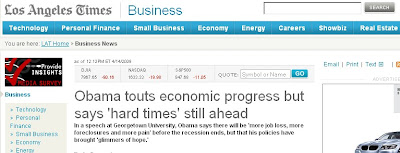
If you're not already, you should always seek out the print link/button on a web page. Many of the web sites, especially the newspapers/periodicals, have them. The image to the side shows an LA Times article and you see the "print" link on the right.Print Link on an LA Times Article

This print function cleans much of the page for you, and even sets margins accordingly. This alone should save you on paper. Although many sites now don't do as good of a job cleaning up the page for printing as they could. That's where PrintWhatYouLike comes in.



PrintWhatYouLike is a free online editor that lets you format any web page for printing in seconds!
Basically, it's a simple point-and-click element removal tool to make printing sites and pages much easier, and without any software. That's right, there is nothing to download- everything runs in your browser, and it takes just a few clicks to remove the elements you don't want printed. Feel free to have a go at it as all changes are undoable. You can even combine multiple web pages together - edit and print them as one document!

Simply paste in the URL of a site, and you'll get a left-hand sidebar that lets you click and remove pictures, headlines, and other page elements. You can pull out the background image, isolate selected parts of the page, and even resize individual elements, all in the name of reducing ink usage and improving readability.
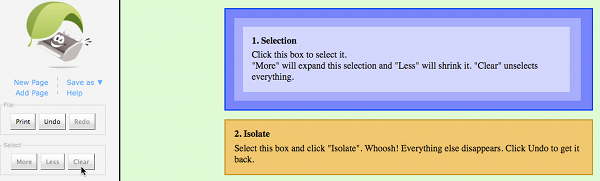
And while you can go to PrintWhatYouLike directly and past that URL, there's now PrintWhatYouWant Bookmarklet that simplifies that act. Simply drag the bookmarlet link to your toolbar, and now you can include the editor on any page with a single click. Need help with the bookmarklet? Click here.


Change Your Font
Folks this alone can save you up to 20% less ink. You can take this to your boss now! Ecofont is a project to optimize fonts for printing, without sacrificing readability.
Appealing ideas are often simple: how much of a letter can be removed while maintaining readability? After extensive testing with all kinds of shapes, the best results were achieved using small circles. After lots of late hours (and coffee) this resulted in a font that uses up to 20% less ink.


Ecofont Example
It's free to download, and free for personal use. For professional use, see this.
I personally use it. Its readability impact is minimal, and I still feel good about not wasting ink and playing a small role in helping the environment.

When I combine both ecofont and PrintWhatYouLike I know I'm making a difference to the environment and in personal savings.

Got other earth-saving and frugal digital/tech tips, please share them with everyone in the comments.