Showing posts with label RSS. Show all posts

Tuesday, July 21, 2009

What is Twitter? A Different 101 Explanation


Twitter
I'm confident that many of you know what Twitter is. And unless you’ve been hiding under a rock, you’ve probably heard and/or read about the service and how it's gaining popularity. All the major media outlets are using it, promoting it, etc.

Twitter gained even more ground during the Iranian protests of a few weeks ago. When the Persian government stopped all journalists from covering the story, the people of Iran (Iranians / Persians) started to send out their messages using Twitter. Those of use who followed the events closely know that Twitter provided the news much faster than many of the news outlets. CNN was broadcasting certain things a minimum of half an hour after it had happened.

In the age of instant news, half an hour seemed like ... well ... old news. Twitter for news, you ask? What is Twitter really? And yes, many media outlets and businesses are using the service, but how is it really benefiting them? Those are all questions I intend to answer, and hope to do so unlike most others. This will likely be a multiple part post, so be sure to tune next Tuesday to learn more about Twitter.

What is Twitter?


Twitter is a free social networking and micro-blogging service. Twitter is a "microblog." Think of it like a blog, only much smaller. In fact, you only have 140-characters (spaces and all) to communicate your message. So what you say has to be short, concise and of interest.

Twitter is simply a means to communicate with an audience of people who explicitly want to hear what you have to say --Such audience are called "followers;" which I'll cover in a bit. Twitter allows users to send updates, known as "tweets," via short message service (SMS) via your mobile phone, instant messaging, from your computer at home or work, or through a third-party application.

Some see Twittering / Tweeting as a way to simply report their "status" to friends. Some use Twitter to post interesting links. Some use it as a savvy marketing tool for their business or interests. Still, no matter how Twitter is used, there are countless ways to utilize this real-time messaging application.

Tweet Tweet
If you’re new to Twitter, then my description might seem a bit vague. Allow me to make a comparison --We currently have many one-to-one, or one-to-few, methods and applications of communication including email, IM, etc. Taking that one-to-few and thinking of a one-to-many communication tool brings to mind blogs, for example. But what if you wanted a bit of both worlds? What if you wanted a one-to-X medium that could be as fast as email or even IM, communicates to all who are interested, has the flexibility of a blog especially in its syndicated/RSS features, can be done from the web or from your phone AND allows you to not just "talk" but also listen to others whom you value?! Perhaps ones that share a common goal, a similar business or just share your passion for a topic; whether it be a passion for that one hour, that day, that week or ongoing. That's what Twitter offers. Simply put, it's the telegraph of the web on steroids.

As the Mashable blog put it ... Though users can answer the prompt, "What are you doing?", tweets have evolved to more than everyday experiences, and take the shape of shared links to interesting content on the web, conversations around hot topics (using hashtags ... more on those later), photos, videos, music, and, most importantly, real-time accounts from people who are in the midst of a newsworthy event, crisis, or natural disaster.

Although the following video helps explain what Twitter is, I personally disagree with the use of Twitter they suggest; but again it was made more than a year ago. I do not, for example, want to know when someone is going to sleep, visiting the bathroom, drinking their coffee or anything mundane like that. Are there those who post such things? Unfortunately, yes. But I'm not one of them (thank God), and I don't follow such people; nor do I recommend that anyone should.


http://www.youtube.com/watch?v=ddO9idmax0o

What are Twitter @word, #word and retweets?


Let's take one at a time. Given Twitter's limited space, at 140-characters or less, you want to be able to reply to someone who tweeted about a topic of interest. For example, I tweet under my Twitter username "ahmadism". Let's say that I sent out a tweet, which would look like this.
An ahmadism tweet


Twitter @ Reply
A fellow Tweeter (a person on Twitter) may want to reply back to me. Should they hit the now-supplied reply button from the web interface of their Twitter account, their Twitter box (where the 140-characters go) would start with @ahmadism; assuming, of course, they're replying to the user "ahmadism." In the tweet pictured above, I'm not responding to anyone because an @ is not in the 140-character string.

So now you know what the @ symbol does on Twitter. What about the # symbol?
Often referred to as the pound symbol (in the US), within Twitter it's called the hash tag; or more frequently as the one word "hashtag." Hashtags are nothing more than string identifiers to make searching for a topic or keyword easier. Within Twitter's search, and even with the tools of many of the stand alone applications and web services out there, you can search for pretty much any word. But searching for a word will result in its use in a slew of topics, as you can imagine. Searching for the same word with a hash tag symbol in front of it, however, will result in the explicit use of that word for searching purposes. In the tweet pictured above, I used "#tiptuesdays" as a hashtag. That's because I serve themed posts every weekday. And I didn't want to find all tweets that contain "Tuesday;" instead, I wanted to find my Tuesdays posts as they relate to Ahmadism.com.

Twitter Hashtag
Does that make sense? In the previously mentioned Iranian protest, many people naturally used the word "Iran" in their tweets. But we didn't want to find just any "iran" tweets, we wanted to find the ones related to the protests as they're happening right there and then. Following the topic, a quick hashtag emerged as the de facto: "#iranelection". And when the young lady that was shot during the protests another hashtag emerged "#neda" (for her name). And the only way I found about it is because some of the tweets I was following, which contained "#iranelection" also contained "#neda" as a hashtag.

All in all, hashtags help you identify (yours & others') certain posts/tweets instead of following a user on Twitter. Naturally, now that there are strings to follow, trends of such strings can now be measured. Companies that tweet with a unique hashtag, for example, can see how popular their tweets are becoming because of the inclusion of their suggested hashtags. To get an idea of that, I strongly recommend that you visit hashtags.org.

RT ME Shirt
So what are retweets?

To retweet (or "RT") means to allow Twitter users to share the best links, tweets, and gems they find from others using the service. Here's an image of someone "geekix" retweeting a post/update/tweet I submitted.

An example of a retweet of ahmadism


Let's explore what took place here. We see that there are the letters "RT" at the beginning of the tweet (after the username), which means that this post is in fact a "ReTweet." We then see the origin of the tweet specified with the @ sign followed by the name of the user. In this case, this ReTweet was of ahmadism. Finally, the rest of the message as it was originally tweeted (in this case by ahmadism) or as modified now by geekix.

I know I beat a dead horse on this one, but I wanted to really spell it out and cover it.

The rest of Twitter is about how to creatively use it. And for the sake of keeping this already-long-article short, I'll cover that next week. Until then.  ▣


Click here to see Tuesday-only posts.


Monday, April 20, 2009

This Week's Career Advice - Technology: Try to Keep Up

As I was telling a colleague and friend of mine over lunch today, I'm amazed at how a new generation that graduates college and goes on to join the workforce still does not know that IE is a browser, that Firefox is an alternative (a much better one too), what a browser is/means, etc.

I expected this younger generation to be on the "up & up" regarding most things internet and online social media. I'm kind of surprised, to be honest.

Then you have the older generation; more specifically, the baby boomers ("the generation born between 1946 and 1964" -census.gov). They are about to become a major force here in the US; very possibly redefining communication, advertising, services and ultimately how we all work and deliver. In 2006, baby boomers turned 60. The State of Utah was the only State "where baby boomers constituted less than 25 percent." (source)

I'm not sure what percentage of the baby boomers are not computer / internet savvy (got a statistic source? Please share in the comments), but according to a recent Sprint commercial, at least 26% of all adults don't know what Twitter is. Whether one should know what Twitter is, or whether Sprint's information is accurate is still up in the air. What it all implies, however, is that there's a lot of opportunity for education on such topics as basic computer use, the internet, email, online social media, etc. And given the convergence of technologies, like phones and laptops for example, I wouldn't be surprised if that education didn't need to cover a slew of other things.

I digress.

Technology is becoming more and more a way of life. The internet specifically, and all it contains, is how we pay bills, check our account balances, communicate, socialize, meet our future spouse, shop, look for jobs and even register for unemployment.

Knowing how to post a blog, do a search, use your email, etc. will no longer be sufficient. One must stay ahead of the curve to compete in the workplace. "But technology is evolving too fast," you might say. That is true. Staying abreast of the trends and knowledge can only help you. There are many ways to do so, one of which is via RSS feeds. Ironically, I had read recently that as little as 3% of us know what and how to use RSS feeds.

Now imagine knowing what you know today, and matching it up with the needs of baby boomers, for example, in as little as 5 years from now. What will you bring to the table at your place of employment?

First, I urge you to watch the below approx. 5-minute video ...


Let's this up a notch, shall we?
I read a year or two ago about research and an experiment that took place where data was stored in the air. Yes, in thin air. That data was retrieved off of an island a few miles away (I want to say close to 100 miles away). I've searched for this source of info. but I cannot seem to find it. Heck, I spent almost 2 hours looking for it. So if you find it, please let me know in the comments. Back to the topic at hand. Data is being stored in thin air. Imagine the possibilities.

The above video talked about how "we are currently preparing students for jobs that don't yet exist, using technologies that haven't yet been invented, in order to solve problems we don't even know are problems yet." It may sound surreal. But take these next two videos into consideration, and think how close to reality it may be.


These videos are of MIT students and how they turn the internet into a sixth human sense. Read more about that here.

Perhaps data in the air and virtual interfaces are still quite a ways from becoming reality. Microsoft's Surface®, Apple's iPhone® and HP 's Touchsmart PC®, however, are current realities. Earlier when I mentioned convergence between a laptop and a phone, I think of exactly the HP Touchsmart PC®.

I've only scratched the surface as you can imagine. And more so on the hardware side. Now think in terms of marketing, design, collection of data & statistics, database administration, email campaigns, TV, print, conversion, coding, usability and QA. Heck, just for QA alone I could write a paper. To give you a glimpse, a Software Quality Assurance team (SQA) usually will test a web site on Windows, Mac and may be even a Linux box. The same site is reviewed under at least 3 browsers with several versions of each. You start adding mobile phones into the mix and you just added several operating systems (the iPhone's, Google's Android, Symbian, Windows Mobile, etc.), along with all the mobile versions of the browsers. When you add things like Microsoft's Surface® and HP's Touchsmart PC® and you quickly can see how much more complicated this gets.

To many of you, being equipped with knowledge regarding Technology may not seem at the core of what you do. It will undoubtedly, however, help you do your job better/smarter and faster. It is your responsibility; and some would argue your obligation to yourself, career and family; to try and keep up.

Ahmadism.com offers Tip Tuesdays, which often contains tech. tips. Be sure to subscribe to the site or at least that day (see the side panel).

Tuesday, April 7, 2009

Tip Tuesday - Using iGoogle for RSS

Google's home page offers a personalized version, which it rebranded to iGoogle LogoiGoogle towards the end of April, 2007 (two or so years ago). In addition to Google being the most effective search engine out there, many have had the regular/original Google page as their default browser's home page for many years because it loads very fast. What's amazing is that iGoogle loads pretty much as fast with all the gadgets as it does without them.

But iGoogle's gadgets is not the focus of this post; rather, it's about how to use iGoogle as your RSS reader. For more information on iGoogle, please see Wikipedia or Google's Help pages.

So what is RSS?
RSS (Really Simple Syndication) is a family of Web feed formats used to publish frequently updated content such as news headlines, blog entries, and other dynamic information. An RSS document (which is called a feed, web feed or channel) contains either a summary of content from an associated web site or the full text.

RSS makes it possible for you to keep up with web sites in an automated manner that can be read using an RSS Reader (also called a "feed reader" or an "aggregator"). You subscribe to a feed by entering the feed's link into the reader or by clicking an RSS icon in a browser to initiate the subscription process. The reader checks your subscribed feeds regularly for new content, and downloads any updates that it finds.

iGoogle adds prebuilt content gadgets based on popularity, to make it quick and easy for you to get a page set up. However, some sources of information you want might not be in Google's default direcgory. To add outside contnet, you need the web address for the RSS feed from which your information will come.

As you browse web pages, you may notice icons like the oversized orange one on the side, or the options on the right-hand side of this site ("Share" or "Posts"). You can "subscribe" to that site and have it automatically feed into your iGoogle page. Your iGoogle gadgets and RSS feeds typically refresh once a minute or so. That way, there's no need to go out to that site to see if there's new content; instead, it'll come to you on your now virtual desktop: Your iGoogle page.
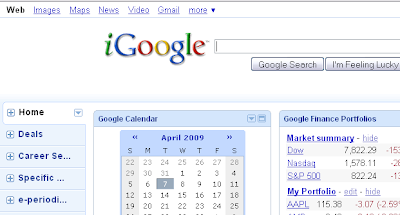
Once you've added lots of RSS feeds and gadgets, you'll notice things start to get a little crowded. iGoogle lets you sort gadgets by topic separating them into "tabs" along the left side of the screen. You can create a new tab by click the "Add a tab" link, which appears in the drop-down arrow from one of your tab titles on the left. You might want a tab called "Career" with RSS feeds from customized searches you created on job boards like dice.com, monster.com, careerbuilder.com or even the aggregator of all job boards, indeed.com ... I digress.

You may want RSS feeds in that tab to articles, blogs, podcasts, etc. related to your career area. Perhaps you want a tab called "Deals" and in it are all your shopping sites. I have RSS feeds in a similar tab to woot.com (one item on special a day), Amazon.com's Gold Box Deals (awesome sales/savings), etc. Fill each new tab with relevant gadgets and/or RSS feeds in the same way/manner you set up your initial page.

iGoogle Tabs
Each one of my tabs is filled with at-a-glance options. Some are a look at the stock market, daily news from sources like NPR, this or that newspaper or specific periodical, tech news (of course) from selected sites and blogs, and even gadgets to see my own email right there and then (from Gmail and Yahoo!'s mail). ONE central location, a virtual desktop, of all the things I usually seek out on the web on an regular basis.

Here is a step-by-step on how to add RSS feeds to your iGoogle page.
Firefox users:
  • Click on the iGoogle tab where you'd like to create the RSS feed gadget.
  • Then visit the site or blog you'd like to subscribe to.
  • Click on the orange square RSS feed icon which can usually be found in the toolbar or somewhere within the website, usually at the top.
  • Choose Google from the drop down menu and if you have not specified before, select Add to Google Homepage.
  • It will automatically appear in your iGoogle account under tab you last visited.
Internet Explorer and other browsers:
  • Copy the RSS feed URL.
  • At iGoogle, click on the "Add Stuff" in the upper right-hand corner.
  • On the left, click on "Add feed or gadget" and paste the URL in the field.
  • The RSS gadget will automatically appear in your iGoogle account under tab you last visited.
  • Click on the iGoogle tab where you'd like to create the RSS feed gadget.
  • Then visit the site or blog you'd like to subscribe to.
  • Click on the orange square RSS feed icon which can usually be found in the toolbar or somewhere within the website, usually at the top.
  • Choose Google from the drop down menu and if you have not specified before, select Add to Google Homepage.
  • It will automatically appear in your iGoogle account under tab you last visited.
Here's a video I found that should help put all of this in visual form:


Do you use RSS feeds? Is iGoogle your RSS reader? Let me know in the comments.