Showing posts with label Bookmarklets. Show all posts

Tuesday, March 9, 2010

Must-Have Firefox Extensions & Add-Ons

Firefox Extensions, Add-ons and Plug-ins
Provided by TechnologyNomad.com

If you're a Firefox user, then you already know that one of the things that make this open-source browser so popular is its extensibility --the big galaxy of useful extensions you can use with it. I for one, have a couple of add-ons/extensions/plug-ins that I simply cannot continue online without. I'll even go out on a limb and say that Firefox's extensibility is the reason the browser has become my very desktop. But what are those browser extensions that turn Firefox from a regular browser to a down-right necessity?

Let's think of this in a different manner. When you buy a new computer, or you land a new job or whatever it is that presents you with the opportunity to start fresh, what are the first things you do?

You see for me, the first thing I do is jump on the native browser that came with the machine and go download Firefox. And I won't go into what other applications I download and/or seek; but for Firefox itself, I immediately start looking for the following core extensions:

It's worth noting that I'm using "extensions" to include add-ons, plug-ins and extensions (of course).

Like all extensions & add-ons, if you don't like one you can always uninstall it; which's much cleaner & simpler than uninstalling a full-blown application.

Greasemonkey

God, I can spend all day on this alone.

The Greasemonkey add-on allows users to install scripts that make on-the-fly changes to most HTML-based web pages. Basically, as Greasemonkey scripts are persistent, the changes made to the web pages are executed every time the page is opened, making them effectively permanent for the user running the script.

These scripts do not actually change the web site itself, but it changes the way Firefox interacts with the HTML on a web page to make it act in a way that is more user-friendly and/or befitting of one's needs. This change only occurs in your Firefox browser and only for the current session. It does not change any coding on the server side or to the web site itself. It simply changes how Firefox reads the code on the page and redisplays it to you with the aesthetic and functionality based on the directions/code of the script(s) you have installed. Every time you visit the web site, the script changes the page for you without you noticing it. There is no delay in the changes visible to the naked eye, usually. Some scripts allow you to auto-fill forms. You can even automatically retrieve data from other sites to make two sites act as one ... very mashups-like.

Greasemonkey allows you to stipulate what pages (and sub pages/directories) to run the script of your choice on. And the reverse is also true. Greasemonkey allows you to exclude certain sites/pages as well.

By itself, Greasemonkey does none of these things. In fact, after you install it, you won't notice any change(s) at all, until you start installing what are called "user scripts."

The "Swiss Army Knife" of Firefox extensions may seem like it requires a bit of ramp-up to get going, but it does not. You simply install those "user scripts" without as much as restarting your browser. There are literally thousands already written for you. To install these "user scripts," first you must install the Greasemonkey Firefox extension. Then head out to Userscripts.org and search for a web site or page you'd like to see optimized and in what manner and you're sure to find something.

Like I said, I could write about Greasemonkey alone. The fact is, there are definitely some "user scripts" that I seek out and install under Greasemonkey; but this is not the time or the place for that. I will tell you that you can find some for most popular sites. There are some that modify how Google presents search results, others that modify YouTube, some that add functionality to StumbleUpon, enhance Flickr, etc. What Greasemonkey scripts are amongst the must-haves is truly a personal thing.

Xmarks

Formerly known as Foxmarks, Xmarks syncs all your bookmarks (and bookmarklets of course) across all computers. As a fan and advocate of cloud computing (with some personally-put restrictions), Xmarks simply puts all your bookmarks & bookmarklets into the cloud so you can access them from any other computer connected to the internet. In addition to online backup, Xmarks is available for Firefox, Internet Explorer (IE) and Safari; so if you add a bookmark in one browser, it will automatically become available in your other browsers as well.

Xmarks has many other features that go beyond the scope of this specific post. One worth mentioning, however, is that Xmarks offers profiles allowing you to display certain bookmarks at certain locations (you may not want certain bookmarks, for example, to automatically be shown and/or available at work). For me, this is an absolute must, since bookmarklets I have created cannot become property of the company I work for; or disputed at any point to be so. Should you leave a workplace for which you had a profile location, you simply disable that location in your profile and they're gone once you sync up.

DownThemAll

Ever wanted to download all the articles, images (only GIFs, only JPGs, or both) on a web site but wish that you could grab them all at one time? DownThemAll does just that. DownThemAll is a selective, powerful download manager. It makes short work of snatching all the images on a page (including those links to the "bigger" or "zoom" versions), all the MP3s off a music or podcast blog, or any other kind of filter you can set up.

The only way to elaborate any more on this wonderful add-on is to build a small walk-through of it; which again steers away from the intention here. So ... I encourage you to try it out yourself and go from there. I'm confident you'll like it.

Better Gmail 2

It's no surprise that Gmail has become the web-mail of choice for many of us. However, there are some nuances that many have expressed; including the inability to use folders (as oppose to Gmail's labels). Better Gmail 2 addresses that and many others.

Better Gmail 2 is sure to impress you with what it offers. Amongst its lesser known features is the gem of hiding labels on the message rows. Only on mouse-over do you see the label that the message was tagged with.

Download Statusbar

Once you start downloading any thing, you're sure going to seek a much better tool than the one native to Firefox. When you are dealing with multiple downloads, it’s easy to get confused and lose track of your files. Sure, there are lots of download managers out there, but sometimes you want something that’s so discreet you barely even notice it. Is there a tool that will do the job?

Download Statusbar is a Firefox add-on that is very low-key. In fact, when you are not downloading, it is invisible, and when active, it is very, very discreet. Download Statusbar completely integrates Firefox's standard release, so there is nothing to configure before you start to use it. When you download a file, a very small download indicator (the statusbar) will appear at the bottom of your screen. From here you can control the download, pausing and re-starting in one click, running the file once it downloads, copying the URL and visiting the source website.

The Download Statusbar display makes it very easy to see what files you are downloading and how close to completion they are. If you open the add-on’s configuration options, you’ll find that the display and download are completely customizable. There are also a series of hints available on the Download Statusbar website that make your downloading even quicker. Simply put, it is effective, low-maintenance and very simple, and if you are a frequent downloader, it’s a must-have extension.

This, of course, serves a different purpose than DownThemAll (mentioned above), which allows you to download (automatically) several files at once. I guess what I'm trying to say is that I use & highly recommend both, and for different reasons.

Others

Most other extensions, plug-ins and add-ons are usually added later as you come across them. What I mean is that when you visit YouTube you'll quickly learn that you need to install the Flash plug-in; and if you visit an audio site that serves RealAudio files, you'll need to install that plug-in. And so on and so forth.

Without a doubt, there are other Firefox add-ons that I have installed; but they are specific to my needs. For example, I like having a tab-centric application (like Tab Mix Plus), an easier copy (as in copy & paste) solution like AutoCopy, and a few others. There are extensions that cater specifically to Developers, ones that cater to bloggers, and ones that cater specifically to laptop users ... to which I highly recommend FireFound and Meebo. The web-based instant messaging (IM) site offers an extension that especially goes well with portable (run off of a USB drive or something similar) versions of Firefox. Again, I'm sure there are many other extensions out there, but these are the ones I rush to add when I have a fresh copy of Firefox.

As a Firefox user what extensions/add-ons are the ones you rush to add when you have a fresh copy of Firefox? Share those with us in the comments.  ▣

Click here to see Tuesday-only posts.

Tuesday, January 5, 2010

Shrinking Long URLs with Bit.ly and J.mp


The URL shortener space is getting increasingly crowded, with a ton of new and existing companies bringing their offerings to the table. A few come to mind like: is.gd, tr.im, cli.gs and TinyURL. Although not yet for public consumption, Google has even launched its own service called Goo.gl. Google's launch comes on the heels of Facebook having quietly launched its own URL-shortening service called FB.me. Heading there in your browser simply takes you to Facebook's home page, whereas sharing links through Facebook's mobile site will shorten them for you using a shortened FB.me URL. Surprisingly, I've not seen much from Facebook about their new service.

is.gd logo
TinyURL Logo
cli.gs Logo


As usual, I digree.

bit.ly Logo
The one service I've failed to mention, and the one that I use the most ... the focus of today's article is bit.ly. Actually, I use the bit.ly powered j.mp, which's two characters shorter. J.mp ("jump") is in fact bit.ly but with a shorter domain name. You can learn more about it here. And in a World where every character counts (especially on the likes of Twitter), j.mp with the power of bit.ly is the best all around URL-shortener (IMHO, of course).

Although I use bit.ly's j.mp domain, I will be referring to the parent company, bit.ly, from here on.

Besides the basic functionality of shortening URLs, it also provide feature for URL analysis. You can track number of clicks, locations, referrers, time of clicks for any bit.ly URL without having to register, login or install any software. Bit.ly also offers customizable URLs, tracking, 301 redirection and a mobile version among many other features.

Bit.ly is trying to stay ahead of the competition with products like bitly.tv (more on that in a few) and bit.ly Pro, which currently allows a limited set of beta users to create their own branded short URLs. In essence, white-labeling the URL shortening service.

bitly.tv
Bitly.tv displays a collage of the most-linked videos (through bit.ly) of the moment. Users can also sort by the top videos from the last day or the last two days. The site looks really slick and is well presented. When you click on a video, a light-box pops out, which plays the video as well as displays a variety of sharing options (Facebook, Twitter, e-mail) and shows a live stream of tweets about that piece of content. The live stream is especially compelling since you can see what other people are saying about the video as you formulate your own opinion.

In addition to powering Twitter (replacing TinyURL), bit.ly is baking into its Web service the Yfrog picture-sharing service made by Imageshack. Yfrog competes with other Twitter-friendly image-sharing services such as Twitpic. Imageshack is what power all of ahmadism.com's image hosting needs for free. For users who want to create easy short links to images they upload from their computers, the integration with Yfrong will be a bit of a time-saver. Also, users will get the real-time click through data from their images on the bit.ly site.

Bit.ly also announced on its blog that Google Reader and Typepad now generate bit.ly links natively.

I'm sure I've only revealed a few of bit.ly's offerings. For example, I know that bit.ly provides a very neat API. If you’re as API driven and like to automate the tasks around you, you’ll be happy to know that there is a new open data table that can shorten URL’s using YQL.

But let's go back to the stats feature for a minute. Did you know that if you put a + (plus) sign at the end of any bit.ly URL, it immediately goes to the info page for that link, displaying all those juicy stats, as opposed to the link itself? For example, for url "http://bit.ly/8ifP7w", open url "http://bit.ly/8ifP7w+", this will redirect to "http://bit.ly/info/8ifP7w" and show all the statistics for this shortened url.

With all this talk about shrinking long URLs, and being a cynic & a skeptic, made me want to see where some of these shortened URLs go before I click on them. Enter a bookmarklet. If you know me, you shouldn't be surprised at the introduction of a bookmarklet.

Get Long URLs

Simply drag the "Get Long URLs" link above to your browser toolbar. Alternatively to dragging and dropping, you could right-click the link and click "Bookmark This Link" in Firefox (my browser of choice), or "Add to Favorites..." in IE. Of course, IE will present you with some blocks to running them, which's why most serious-net-browsers do not use IE.

Short URLs generated by URL shortening services say little about the landing site but this bookmarklet can rewrite all short links on a web page so you know exactly where those links are pointing to. Once bookmarked (in your bookmarks), and you're on a page that that has a shortened URL (like a Twitter page, an email, etc.), click on the bookmarklet and it will convert all those shortened URLs back to their source giving you visibility to the destination.

Do you use a URL shortener? Which one? Tell us in the comments.
ahmadism.com is not affiliated in any way with bit.ly or any other URL shortener. This article was written solely out of experience with the various tools.  ▣

Click here to see Tuesday-only posts.

Tuesday, December 1, 2009

Google Music Search (aka OneBox)


Google Music
Google updated the music search OneBox, which used to include song titles, album names and some other information licensed from AllMusic. Google Music Search (aka Onebox) is a music search feature that appears inside Google search that will give you not a little 30-second clip, but a full song play.

Google Music Search 2.0 (aka OneBox)


Search for an artist, an album name or even some lyrics and Google returns a list of songs that can be played with one click. Full music previews are provided by iLike and Lala, but Google also links to other music sites: Pandora, Rhapsody and imeem. When you click on a music result, Google opens a player in a pop-up window, which isn't very user-friendly.

"With Lala, you can hear one full length preview per song. Each subsequent play will be a 0:30 clip," explains Lala. This limitation is very easy to bypass: just clear the cookies for lala.com.

Basically, as you can see in the picture above, you will see play buttons alongside different songs when you get search results. If you press play, a popup from MySpace (iLike) or Lala appears, letting you play the full song and giving you buttons to buy it or get more info. You will also have the chance to check out the band on other services/sites as I've mentioned above.

As you might imagine, there's no mention of iTunes in all of this. This (the lack of iTunes-mention), however, does make me wonder about Apple and whether or not they plan to use the server farm they're building to make their own search engine --Ultimately, this would mean that Google will not be the default search engine for their Safari browser. It can only get more interesting.

Back to what I was saying ...

In essence, Google isn't playing the music at all. It's up to MySpace and Lala to manage the rights of the full-song playback business, and to serve up the content. For more info, check out the YouTube video (below) or Google blog.


Link: http://www.youtube.com/watch?v=DV24RBmy-2I


Around the same time this came out a month or so ago (October 2009), and not wanting to feel left out, Yahoo! reminds users that it launched a similar feature last year. "Since launching a partnership with Rhapsody in September 2008 and launching the FoxyPlayer last year, music has been an integral part of the Yahoo! Search experience as well. We have found that nearly 6 percent of all Yahoo! searches are music-related."

Here's the thing ...
(you'll shortly get an idea why I put this waaay at the bottom of this post)

I've been searching music on Google for a few years. And I've been able to "listen" to the results without a hitch. If you've followed this blog at all, it should come as no surprise that I use a bookmarklet. I don't want to give it all away, to be honest, but I'm more than happy to share it for a limited number of people. Let me know in the comments and I'll send you the bookmarklet.

So what does this bookmarklet do? It searches Google (and no other) for music based on a string you provide it (usually the name of the artist or the song ... not the lyrics). I simply manipulate the Google page (the search page and the results page) into something that caters to music. The results are mp3 & ogg files that I can "listen" to right there and then. And no, there are no third-party applications, other links (hidden or otherwise), etc. It's simply a Google search with some serious URL manipulation to customize the search and the results. Yes, it's that simple.

Heck, with FoxyTunes, a free browser plug-in I have on Firefox, it automatically adds the play button next to the results of the bookmarklet. Can I find all the music I want with this bookmarklet? Honestly, no. It's limited by what ... ummm ... I've said too much. Just know that you'll find more than 90% of what you're seeking. And again, if I send you the bookmarklet, you'll have its code to see exactly what it does. You'll even be able to modify it to do other things (hint!).  ▣

Click here to see Tuesday-only posts.

Tuesday, November 24, 2009

5 Useful Bookmarklets


It's been a while since I wrote about my favorite web "technology" ... bookmarklets. Despite the huge collection I have, I'm constantly coming across some awesome-written bookmarklets. I've also had the opportunity to write a couple for personal use (to help with blogging, etc.), and I wanted to share 5 useful everyday bookmarklets.

To learn more about bookmarklets and what they are, I invite you to read this past post. To summarize, a bookmarklet is a a term that may have originated as a result of the merge between "bookmark" and "applet." Browser-independent, bookmarklets add functionality to any web browser. Consisting primarily of JavaScript code, bookmarklets can be stored in the bookmark/favorite bar of any browser and used from there to perform useful tasks affecting (in most cases) the current page.

Bookmarklets Folder

In short, bookmarklets allow you to temporarily modify the current page to do something you need. Once you refresh the page, or revisit it, it will be back to the way the web page designer intended it. For a more permanent solution, using the very same JavaScript solutions you find or write, you basically need that JavaScript to run on the specified page all the time ... automatically --And that's exactly what Greasemonkey is and does.

With services like Xmarks, which give you access to your bookmarks from practically any where there's an internet connection, bookmarklets are an excellent cross-browser way of performing some tasks without the need for toolbars (which can be a security risk). Here are 5 bookmarklets, which I'm hoping you find useful:

1. Linkify


My mother sends me all kinds of emails, which are usually links she's come across or forwards from other people. I guess Yahoo! Mail doesn't automatically convert links into ... well ... links. Instead, it keeps them as non-clickable text. That's where Linkify comes in. When I click on the bookmarklet while I've got her email up on the page, it makes what was once a non-clickable link into one that is.

Linkify

Simply drag the "Linkify" link above to your browser toolbar. Alternatively to dragging and dropping, you could right-click the link and click "Bookmark This Link" in Firefox (my browser of choice), or "Add to Favorites..." in IE. Of course, IE will present you with some blocks to running them, which's why most serious-net-browsers do not use IE.

2. List All Links


Sometimes it's handy to list all the links on a page. I use it on pages where music is listed, but don't want to fiddle with all the nonsense. I also use it to test pages and ensure that all the links work instead of scrolling or finding out if an image is a link or not. You get the idea.

List All Links

Like the "Linkify" bookmarklet above, drag the "List All Links" link above to your browser toolbar.

3. Edit Current Website


This bookmarklet turns the current page into a lite WYSIWYG, and helps me with productivity/blogging, but can also be for fun. Imagine changing the headlines at a major newspaper website with your own words, taking a screen shot, etc. Its best use, however, comes with altering text on the fly allowing for easier copy & paste.

Edit Current Page/Website

4. Favelet Suite


The Favelet Suite bookmarklet is the Swiss Army knife of the web design bookmarklet world. It includes the following features:
  • Color List
  • Document Tree Chart
  • HTML Attribute Viewer
  • HTTP Header Viewer
  • Hidden Field Modifier
  • Javascript Object Tree
  • MODIv2
  • Mouseover DOM Inspector
  • Object Dimensions
  • Page Info
  • Remove Children
  • Resize Fonts
  • Ruler
  • Show Source
  • Style Sheet Tweak
  • Style Sheet Viewer
Favelet Suite

5. Linearize


Reformats a page so that the entire contents is in a single column. It's great when you want to copy a lot of text from a page. I use it to more easily grab text from long articles with complex layouts, which you can dump into a text-to-speech reader when your eyes are tired (geeky, right?). (originally by Jesse Ruderman)

Linearize

EXTRA


Here's an extra tip, which builds on the same principle as bookmarklets but is not really one. Still, you may find this simple tip handy if you always have a web browser running on your desktop screen in maximized mode, which most of us do.

There are instances when you need to access program shortcuts and files placed on the desktop.

Now instead of minimizing the browser to access these files, you can simply create a shortcut in the bookmarks toolbar of your browser that points to the desktop folder. Click this bookmark and you’ll be able to browse through desktop content within the browser.

To create a bookmark pointing to the desktop, open this address file:///c:/Users/ (probably easier to copy & paste it instead) inside a new tab in your browser (Firefox?). Click your user name and then drag-n-drop the "desktop" folder to your bookmarks toolbar. I do this with my Desktop and with my My Dropbox folders.
  ▣

Click here to see Tuesday-only posts.

Tuesday, November 3, 2009

Tips for Browsing & Working Faster


Fast Typing
As someone who does most of his work online, the browser has become the cornerstone application I run at all times. And being in technology for almost 15 years, I can't help but notice some of the browsing habits that my family, friends and colleagues have. In most cases, I'm their tech support and their first line of defense for most of their PC needs (purchase, how-to, strategy, approach, web site, email, etc.). So, I wanted to write a few browsing (and some non-browser) tips to help speed things up and help all to not only be speedier, but more productive.

It is worth mentioning (up front) that these tips are derived from my own personal style, and may not all work for you. However, I'm hoping that at least a few of them will come in handy and perhaps help you develop your own style. Since the objective of these tips is to be speedy and more productive, it should come as no surprise that this means I rely on the keyboard for most of them (instead of the mouse) minimizing "lift." That is, the act of lifting my hand and going to the mouse to only click on something once and allow me to resume typing. A perfect example of this is the URL bar/field. Many take the mouse to click on that field so that they could type away the URL in mind. I'm getting ahead of myself, but I figured an example is in order.

The Browser Itself


I wouldn't be surprised if the main application most of us use in today's age is the browser. Heck, I'm willing to go as far as suggesting that the browser is the new operating system (OS) of today. And your choice of browser says a lot about you, your browsing habits, and a whole lot more. Let me be short, sweet and to the point and say that if you're using Internet Explorer (IE) and you don't really have to (because of your work's IT, etc.) then do us all, and do yourself, a favor and switch. And if you're on IE6, then know ahead of time that you'll have to choose a side. Yes, it's that serious. Personally, I use Firefox. And if I wasn't, I would use Google Chrome. Why? Well, the number one reason I use Firefox beside the its compliance with the standards out there is its add-ons and extensions. There are some I simply would rather not work (or live) without.

Keyboard Shortcuts


As I previously mentioned, avoiding that reach to the mouse is sure to save you time and help accomplish things more efficiently. Addressing my earlier point, seeing a professional reach for the mouse and clicking on the URL bar only to type "www.google.com" kills me. Within most browsers (yes IE too), you can alt+d to put the cursor within the URL bar highlighting the entire current URL ready for you to type over it with what ever your heart desires. Besides copy (ctrl+c) and paste (ctrl+v), going to the URL is the next most common thing ... heck, I think it may even beat copy & paste.

Keyboard Shortcuts

While we're at it, you don't really need to type "www." and the ".com" at the end. Just type (in the example I used of going to www.google.com) "google" and hit ctrl+enter. That combo adds "http://www." before the string and ".com" after the string. The string being the "google" part.

Here's a list of keyboard shortcuts that apply to most browsers, but are listed here with Firefox in mind (yes, I'm bias):
  • Go back one page in history: Backspace [or Alt + Left Arrow]
  • Go forward one page in history: Shift + Backspace [or Alt + Right Arrow]
  • Home Page of browser: Alt + Home
  • Reload current page: F5 [or Ctrl + R]
  • Stop loading current page: Esc
  • Page down (i.e., scroll down) in current web page: Spacebar
  • Page up (i.e., scroll up) in current web page: Shift + Spacebar
  • Go to bottom of current page: End
  • Go to top of current page: Home
  • Zoom in (i.e., increase text size of page): Ctrl + =
  • Zoom out (i.e., decrease text size of page): Ctrl + -
  • Find a word in current page: Ctrl + F
  • Find again: F3 [or Ctrl + G]
  • Find Previous: Shift + F3
  • Print current page: Ctrl + P
  • Bookmark current page: Ctrl + D
  • View Page Source: Ctrl + U
  • New Tab: Ctrl + T
  • New Window: Ctrl + N
  • Close Tab: Ctrl + F4 [or Ctrl + W]
  • Close Window: Alt + F4 [or Shift + Ctrl + W]
  • Select Tab (1 to 8): Ctrl + (1 to 8) [for example, to select 2nd Tab: Ctrl + 2]
  • Select Last Tab: Ctrl + 9
  • Toggle Private Browsing: Ctrl + Shift + P
  • Select location bar: Ctrl + L
  • Select search bar: Ctrl + K


This keyboard shortcut list does not do it justice. My favorite list can be found here.

Don't expect to memorize half of them. Simply refer to the shortcuts and use them; and you'll learn them in due time. Despite my technology tenure, I learned one keyboard shortcut today, for example (shift+spacebar).


Use Tabs


I remember once reading something similar to the following line (I'm adapting it a bit): If the browser is the new operating system, then the tab is the new system process, and the tab bar is the new taskbar. There are always reasons to launch a new browser window, but for the most part try and use tabs whenever possible.

There are many add-ons (for Firefox) that help optimize tabs and their use. Most should know how to open a link in a new tab (just right-click the link ... when in doubt, right-click). As evident by the keyboard shortcuts, there's always more than one way to do the same thing. So look it up and see if using it works for you ... but be fair, give it some practice first. When I don't have a link but know my URL, I simply ctrl+t (open a new tab), type the main domain name & hit ctrl+enter to make it a .com url with the www part and I'm off to go. It's longer to read (and type) than to do, I assure you.

Get Organized


Organize your bookmarks in folders. I know that many use outside social bookmarking sites, and even local bookmarking is usually heavily tagged (meta-data); but I still think folders in this case (for bookmarks) rule. And I recommend creating as many of them as you can. Later, if you're serious about organizing, you'll find yourself consolidating some of the folders or even nesting some within others. The end result, in all cases, should be a more organized browser, a more accessible list of links and more efficient cataloging.

For example, I have a bookmark folder sitting on my Bookmarks Toolbar called E-Mail. In it are all the email sites I visit (gmail.com, mail.yahoo.com, hotmail.com, etc.). Another easily accessible folder (although this need not be this accessible) is a folder I created called Bookmarklets. More on those in a little bit. Another folder, again on the Bookmarks Toolbar, is (replaced with the company for whom I'm working). In it are links to the intranet, and several other internal links. In this same folder, I also keep the external and internal links (when they're different) to access my mail over the web. The next point should tie nicely with the reason behind this madness.

Use Keywords on Your Bookmarks


I don't use this as heavy, or even in the same way as most people do. Let's first talk about what they are: Once a bookmark is created, you can go back to it, go to its properties and see a field called "Keyword." It is in this field where you can set a small word or phrase (I'd keep it concatenated) to use instead of the actual bookmarked URL itself. Let me elaborate ... Let's say you bookmarked "http://mail.yahoo.com." Then you go give put "ym" as the string in the Keyword field. Now, all you have to do is type ym in the URL bar and hit enter. Circling back to the keyboard shortcuts, you would do alt+d then ym and enter; and voilĂ , you're at Yahoo! Mail. Of course, you can make your keywords as long or as short as you need them to be.

But where this is the most handy is with longer URLs that you want to bookmark. For me, the longest URLs I seek the most are bookmarklets. Excellent segue into the next section ...

Use Bookmarklets


I don't like to use toolbars outside of what came native with the browser. Heck, even that I butcher to maximize my browser real-estate on my old laptop (a used Dell Latitude D505). I don't install the Google Toolbar, the Yahoo! one, or any other. Toolbars will slow your browser down and are a security risk I'm simply not willing to take. Don't get me wrong, there are a few especially for developers that are absolutely amazing. Nope, I don't use those either. If I had a browser that had them, I'd have them disabled most of the time.

So what do I use instead? Most of what I need, and most of what the toolbars do, can be done with bookmarklets. Bookmarklets are basically JavaScript that calls that have been bookmarked. For example, javascript:alert("hello world"); is technically a link that can be bookmarked. Many sites offer bookmarklets that you can drag to your toolbar for later use.

JavaScript is used on most web pages. Those JavaScript bookmarklets allow you to run your own "manipulations" against the page that you're currently on/viewing. For example, you can force most pages to have a black or white background using a bookmarklet. Amongst such bookmarklets are the ones from such social bookmarking tools I previously mentioned, like Delicious, Tumblr, and others. Amongst my most used bookmarklets are URL shorteners. They not only provide a shorter URL for whatever I want to send out, but tracking (if you're logged in ... free account) all those URLs as well. I digress. You can read more about it here.

Now that I have my bookmarklets, I organize them in a folder called just that (see above), and then I assign my most used ones a keyword of their own to make accessing them a breeze. Like the Yahoo! Mail bookmark, now I can invoke a bookmarklet with alt+d, , enter.

Bookmarklets is what I use the most. And if you've been following my articles, you'll know I'm a bookmarklet-collecting freak. And I use a lot of them. I love the ones that help me read or watch YouTube by dimming everything else (two different bookmarklets). I use bookmarklets to help me write my blog (masking images and aligning them), to QA, to test accessibility, etc. There are many server services, with URLs, out there there that you could pass a URL to (like the current URL of a page) to do something with the page for you. Among such services is PrintWhatYouLike. I know this is not a bookmarklet article, but assigning such a bookmarklet a keyword and using it can have green implications (saving ink and printing paper).

A Couple of Words on Bookmarking ...


Where many use Delicious, Tumblr, or even others like Google Bookmarks and Instapaper, I've not been able to make that jump yet. Perhaps it's because I use Xmarks (formerly known as Foxmarks). Xmarks syncs my bookmarks and allows me to choose which ones are visible/accessible on different profiles. So my "work" profile only shows these folders, and not these others. I could also always go to xmarks.com and access my bookmarks from any computer with internet access.

I do, however, use photo/image bookmarking through a 3rd-party. Where most use such services as vi.sualize.us, I've found myself in love with weheartit (pun intended). I've added their bookmarklet to my collection, made sure it's in my Bookmarklets folder (organized) and have assigned the keyword "loveit" to it. Now, when I'm on a page/site that contains an image or a photo I like, I simply alt+d to go to the URL field, type loveit and hit enter. I then pick the image on that page that I want to "bookmark."

Other Browser Tricks


There are other tricks you can use to boost the likes of Firefox, which you can find here (speeding Firefox itself), extensions and add-ons that are highly recommended, and finally hacks to Firefox's configuration.

These are all things you can do to enhance Firefox. The bulk of the browser tips (and most are generic to apply to other browsers as well) came before the last paragraph, and they are discipline-based with a few technical ones here & there to help you along the way.

Outside of the Browser World


I'll try and be brief here. I find myself often needing to take a note. Nothing elaborate. I'm usually jotting a phone number down (although I do a lot more ... like this entire article), and I usually need it quick ... like NOW! My application of choice is Notepad. But in the spirit of keyboard shortcuts, I do not click on the start menu, find all programs, accessories, yada yada. Instead, I type ctrl+alt+n. That's the shortcut key I've assigned Notepad. I've also assigned one to the calculator (ctrl+alt+c). Now I'm only 3 -key presses away from getting what I need done.

Notepad Shortcut

There are many other things/quirks I do to help me work faster and being more productive. One overlooked item that I use almost always is alt+tab to switch/cycle amongst running applications within Windows. I cycle through tabs, since the browser is the bulk of what I use, with ctrl+tab. Sometimes, it's easier for me to do ctrl+1 for the 1st tab. On many occasions, I find myself guessing the number of the tab (hmm, it's about the 6th open tab so ... ) ctrl+6. All it does is bring focus to that tab. No harm with being wrong. I just adjust the number based on how close I got.

Using services that consolidate multiple touch points for you will inevitably, and perhaps by definition, help you work faster & better. Many of us use instant messengers like Yahoo! IM, AOL IM (AIM), Facebook chat, MSN, GTalk, Jabber, etc. But we also use Twitter, check our email, Facebook, LinkedIn, etc. I use one application for them all: Digsby. It's a standalone application that's not browser based (must install it on Windows), but it's free and worth it if it was not.

Another highly recommended tools to help you work faster, better and be more productive include password managers like 1password and KeePass. Combining their use with your browser life and perhaps some cloud computing services (umm, like Dropbox ), and you'll quickly be armed with security on the go. Read more about that here.

As you can see, what you use outside of the browser (like to listen to your music, to watch video, etc.) can also help you be more efficient. Naturally, not all things that consolidate are worth a lick. Some things are best left separate.

That's the tip of the iceberg for my style and what I do. What's yours? I would love to learn new tricks (wuf wuf). Share them with us in the comments.  ▣


Click here to see Tuesday-only posts.


Tuesday, October 13, 2009

Visual Bookmarking - We Heart It (we♥it)


Visual Bookmarking
I have a vast collection of bookmarks that I've collected over the years. I often revisit one only to be dumbfounded by why I bookmarked the site in the first place, the page no longer exists, the image or the video behind the reason I bookmarked the page is no longer active/available, etc.

As I slowly comb through and clean up/out my bookmarks, I've come to realize that in this day & age of social media I really don't need to bookmark an entire page. Some times I want just the text. And some times, I want just images or the video. And other times, I want the whole site preserved and saved to my computer's hard drive.

I use different solutions for each of the three. For the 1st one, I use a Google product (more on that on a different day). And for the last one, I use a piece of software, which I've enjoyed having for a number of years. But for bookmarking (not saving) images and/or video, I've come to find one service to be the easiest: weheartit.com
we heart it
I come across many many great images, photos (yes there's a difference between the two) and videos that I want to bookmark/remember. Sometimes I want to look at them all on one page either by category/tag or just have them all there. That's where weheartit (we♥it) comes.

Are there other services out there? Yes, there are plenty. To name a few, there's the by-invite-only ffffound.com, which is really aimed more for the artsy type. Then there's dropular.net, which's another invite-only service; except this one is "mostly designed for fashion designers, photographers, architects, graphic designers and artists." Then there's vi.sualize.us. If I wasn't using weheartit, I'd likely be using vi.sualize.us; but I like weheartit's ease of use and simplicity. Of course, there are many others; but these are the ones that come to mind at the moment.

I love it
So how do I use it? Well, when I come across something I like ... something that I want to remember for later ... but mostly something I find inspirational and/or just beautiful, I ♥ it.

More specifically, weheartit provides a bookmarklet that I assigned (in Firefox only) a keyword to ("loveit"). From there, while I'm on a page with the photo/image/video I like, I simply type "loveit" (without the quotes, of course) in the browser's URL and hit enter. I immediately get the pink border around the objects of that page allowing me to click on the heart of the one I'm interested in saving. VoilĂ .

If I wanted to, I could then use a URL shortener like bit.ly (I use their sister shortener called j.mp) and tweet or post on Facebook an image or video I liked. In a way, making my own twitpic.com replacement.

Are you using a visual bookmarking service? Which one? How are YOU using it? Let us know in the comments.  ▣


Click here to see Tuesday-only posts.


Tuesday, July 14, 2009

Bookmarklets and Twitter

It's fair to say that Twitter truly hit the mainstream in recent months. And it hit the mainstream media most when the Persian protests kicked into high tweet-gear after their government stopped almost all other net communication (they even stopped Twitter, but many jumped right in and created proxies for them).

Despite the 140-character limit, the Twitter user pool is very broad and covers every topic imaginable. Granted, there are the lame tweets (Twitter messages/posts are called "tweets") like "drinking my coffee" and/or "feeding my plants." That, however, may have been how things started on the service. Now, many of the tweets have depth and experience. For example, many of us on the service knew of events before any news outlet reported on them. In the previously mentioned Persian protests, it took CNN (and others) almost half an hour to catch up. Perhaps they were worrying about presentation, format, appropriate material, etc. Whatever the reason, their news was simply old news by the time I saw it --And I was glued to the TV. People are posting about natural disasters (like earthquakes), accidents (traffic or otherwise), etc. all as they're happening. Pretty much live.

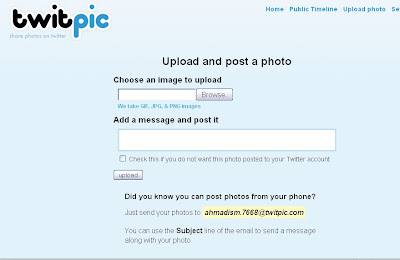
Given the 140-character limitation, and I don't mean that to sound negative (I actually think the limitation is a source of the Twitter's success), many services have spawned to compliment and supplement Twitter. And although this article is not a review of those services, a few deserve mentioning. Amongst such services is TwitPic. The service (unaffiliated with Twitter) allows you to share photos on Twitter with ease. You log into the service with your Twitter account, upload a photo (from your computer, your phone, etc.) and share a link with a simple tweet (see the image).


Other services, which existed before Twitter but truly flourished with Twitter's popularity, are URL shorteners. With the 140-character limit, you don't want to tweet a long URL like that of a map or a blog's article, for example. Heck, some of those URLs are guaranteed to exceed the character limit alone without any message you may like to add. That's where URL shorteners come and save the day. Amongst the URL shorteners that truly made a name for itself is tinyurl. Go and check it out to see how it works. I wouldn't do it any justice to describe it here. There are many others out there, some of which I think are much better than tinyurl including bit.ly and is.gd.I've recently started working with is.gd, but I'm very familiar with bit.ly and love how the service can track how many people have clicked on my link (if I'm signed in). Update: While writing this article, Mashable released an article on URL shorteners that's a perfect fit with today's topic.
There are many more services out there that work specifically with Twitter (like TwitPic), and others that work with all sites but are probably most used with Twitter (like the URL shorteners). I could spend hours talking about Twitter, and days about the services that cater to it. Instead, and in the spirit of last week's series conclusion, I wanted to focus today on bookmarklets and Twitter; but felt the need to go into what Twitter is; especially given the service's recent explosive media coverage. Having said that, I urge those who are familiar with Twitter, but especially those who are not, to review the following useful presentations on the service, which are guaranteed to teach you a thing or two about different ways people are using Twitter:

Alright ... Now that we've covered Twitter as a service, and touched on some of the services that surround using it, it's now time to talk about how could bookmarklets help. For starters, let's say you come across this one thing that you really want to tweet about. If you wanted to use TinyURL, you're better off using their bookmarklet, so you don't have to leave the page you're trying to tweet out to all who follow you. As mentioned in the bookmarklet organization article a few weeks ago, you may have a folder full of URL shorteners and use different ones for different things (although that's unlikely; and you're probably using only one that you like most). For me, the bookmarklet that bit.ly provides is almost perfect.

Looking at the bottom of each post on ahmadism.com, you'll see a "Tweet This" bookmarklet that works much like tweetmeme thanks to a PHP tool that Bernhard Häussner provides. Other awesome bookmarklets that work with Twitter out there include one that allows you to use your tweets for social bookmarking! The Fleck bookmarklet, Fleck Tweet, posts URLs to Twitter, shortening the URL for you (so you don't need bit.ly or others) and then saves that tweet as an easy to find bookmark in your browser. The tool, Fleck Lite, seems to be an awesome tool that I'm sure to give a try in the next few days.

Another service that takes advantage of the marriage between bookmarklets and Twitter is Twitlet. Although it requires your Twitter username and password up front, the service only does so to generate a custom (encrypting your Twitter login info.) bookmarklet for you. Amongst the features of this free services is the ability to use the special #link or #this keywords to add links to the current page using the previously mentioned URL-shortening service is.gd. Also, you can select some text on the page you're on and the Twitlet bookmarklet will place it in the text box for you to tweet out.

TwitThis is a similar service to Twitlet. It also uses a URL shortener (which I think once used to be TinyURL and is now using their own URL --It's short enough); and in addition to the bookmarklet, the services also provides buttons for your web site/blog with or without an image, a WordPress (a blogging service) plugin and even a Blogger/Blogspot integration. This means that should I decide to stop using Mr. Bernhard Häussner's PHP tool for my "Tweet This" link at the bottom of each article, and I don't want to use the commonly used tweetmeme service, I could always use TwitThis allowing the readers of ahmadism.com to tweet the article while they're on the page. TwitThis also allows you to use just their URL shortening service.

One of the features I like most about the bit.ly URL-shortener is its ability (if you're signed-in) to provide statistics on clicked on my short URL I created and disbursed (via Twitter, blog, email, etc.). But it also shows you how many other people have tweeted about the same page using its service, and lists the latest tweets about that short URL. I imagine bit.ly has a service that simply searches for that short URL across Twitter and returns the results. But what if you wanted to know if there's any buzz about the page you're on, whether it was done via bit.ly or not? That's where TBuzz shines. The service is very simple: You add their bookmarklet by dragging a button they have on their home page to your browser's toolbar. You simply click on that bookmarklet whenever you visit a web page you’d like to talk about on Twitter. The service uses bit.ly as its URL-shortener and also sports features like that of Twitlet allowing you to select text that it quotes and readies for you in the box to tweet with the shortened URL. A video on their home page is much better at explaining this than I ever could.

In addition to posting things on Twitter, there are bookmarklets that work with it. TweetPkr is one of those services. On their site, they say: "tweet-peek-er" - Take a peek at your friends twitter updates from anywhere. They have a video on their home page that describes their service along with how to add their bookmarklet (which all readers of ahmadism.com should know by now how to add any bookmarklet; right?). The service, like Twitlet, requires that you enter your Twitter username and password. Like Twitlet, and they're clear about it on their site, they simply encrypt them to include them within the customized bookmarklet. Nothing, as they state, is saved on their servers.

Finally, I'd like to bust through the 140-character limit with a service called BigTweet. Via a bookmarklet, BigTweet allows you to tweet from any page (like most mentioned in this article), without any registration required (but prompts for a log-in, but promises OAuth seamless login soon), post to Twitter or FriendFeed, with the option of 140- or 240- character limit, shorten a URL (using bit.ly, of course), ☺ include special ♫ unicode characters ♥, post to del.ici.ous (so you have all your links bookmarked; which in essence could compete directly with previously mentioned Fleck), capture & automatically insert highlighted text, title & link ... and best of all track your link statistics, by signing up for the previously mentioned bit.ly service, all without leaving the current page you're trying to post about via a simple bookmarklet. I've only learned of BigTweet recently, and it has officially replaced the bit.ly bookmarklet I once used.

And before I call it a day, it's worth mentioning that with all these URL-shorteners, there are services out there that will reveal the shortened URL destination (the long URL) for you. Amongst them are UnTiny and LongURL.There's even a Greasemonkey script that when active it takes all compacted URLs from 13 URL shrinking services and automatically convert them to their source URLs. No resource hogging extensions or bookmarklets you have to interact with, just automatic and seamless replacement.

There are numerous other services (some are truly amazing) out there, and these are by no means a summary or even a "best of" list. Instead, they're a glimpse of what's out there. A glimpse of how bookmarklets are evolving and even extending the services of many to simplify their use with other services like Twitter. And like Twitter, bookmarklets exist for such services as Facebook, Flickr and many others.

If you know of any must have social media bookmarklets, please don't hesitate to share them with us in the comments. ▣

Click here to see other Tuesday posts (including the current one).

Tuesday, July 7, 2009

Bookmarklets (p4): iPhones & All


Once a week for the last three weeks, I talked about bookmarklets. In this series, I gave a bookmarklets introduction, how to best manage bookmarklets ensuring that they're organized, portable and accessible to you from anywhere, and finally last week we talked about the basics of writing bookmarklets. This week, I'm hoping to close the series with part 4 titled "Bookmarklets: iPhones & All."

What do you mean "iPhones & all," you may ask. Believe it or not, most people do not know that bookmarklets work on iPhones and on iTouches (iPod Touch). As a matter of a fact, I can't imagine owning an iPhone without some really essential bookmarklets. But we'll get to that here in a few.

As I've mentioned in other parts of this series, bookmarklets for the most part run on almost all browsers (especially good-written ones), which make them platform independent. In other words, as long as the browser supports JavaScript (and I don't know many that don't), it doesn't matter if you're running said browser on a Windows machine, Mac, Linux, or on any of the mobile platforms out there. Aside from that advantage alone, I run bookmarklets because I don't like to have toolbars. In addition to the valuable real estate that toolbars take up, more so on a laptop screen, I do not want the additional virus-and-the-like entry-points that toolbars create. I digress.

Since bookmarklets are JavaScript invoked within a browser on the current page, it is no surprise that writing them may encounter browser compatibility issues. For example, it may run well in Firefox (FF), but not so in Internet Explorer (IE). A JavaScript call (bookmarklet or not) may even run on IE8 but not so within IE6 (there's a shock, right?). For that reason alone, it's best to test the bookmarklets you obtain and make sure that they run on your desired browser & platform. In this case, you want to make sure that the bookmarklets you write and/or obtain will actually run on your iPhone's browser of choice.

Until very recently, within the last couple of weeks, iPhones didn't have the ability to copy & paste. And as I understood it, the new iPhone 3G fixed that issue. I'm not sure, however, that it fixed the need for a "find in this page" feature, for example. I know that folks love their iPhone apps; but their are things, I'm sure, you want integrated with your iPhone's browser (natively, it's Safari) without having to launch an app. That's where bookmarklets for your iPhone come in. Better yet, some bookmarklets (free of course) could replace an app you'd otherwise pay for with your hard earned money. In my humble opinion, I have a bookmarklet that allows me to tweet (post to Twitter) the current page I'm currently on while using bit.ly's URL shortener. Nothing against the iPhone app Twittelator Pro (cost $4.99, I believe), but I'd rather the bookmarklet. Granted, at this price, it's hard to ignore the so many features the app packs & provides; but I was going for the example here.

Unfortunately, the process to add a bookmarklet on your iPhone's Safari is very clunky. In short, you have to save that link as a bookmark, and then go back and edit that bookmark to delete everything before the javascript: part.

There are several step-by-step instructions on how to go about adding bookmarklets to your iPhone without syncing (or jailbreaking). Amongst them is this illustrated guide, and this unusual way of adding them by email. My favorite, however, is a bookmarklet by TheCSSNinja that helps you add bookmarklets to your iPhone. You may have to add this one bookmarklet first the traditional way described in the links above, but after that, you can use the bookmarklet to add all others.

Here's a well detailed video to help you out. I don't know much about the service, but I do like their instructions on how to add bookmarklets, which of course apply to all bookmarklets added to an iPhone or iTouch, and not just their own.

http://www.youtube.com/watch?v=6PXpER8nqGk


So now you're able to add bookmarklets to your iPhone and iTouch. What bookmarklets should you add? For that, I direct you to do a search like this one. I personally found this link and this one here very helpful too. Of course, I also post some right here on Ahmadism.com, and plan to do more of that in the future.  ▣


Click here to see other Tuesday posts (including the current one).


Tuesday, June 30, 2009

Bookmarklets (p3): The Basics of Writing Bookmarklets


Continuing this series on bookmarklets, this week I wanted to cover the basics of writing bookmarklets.

I must assume that you are familiar with JavaScript. If not, then I highly recommend that you get quite familiar with it first; especially with the document object model (DOM). Many of the issues that JavaScript (JS) encounters, and therefore so does bookmarklets, are browser compatibility issues. In other words, your JS code would work in one browser, but not in one or more of the others. Writing universally correct JS code is important and key to a very successful bookmarklet.

It is also assumed that you understand HTML quite well, and that you are comfortable with such things as the HTML tags, what is a URL, secure vs. unsecure protocols, HTML entities (ISO 8859-1), etc. In addition to the DOM, which I mentioned above, you also need to know about certain HTML features and how to interact with them --Like frames and framesets. There are many HTML tutorials out there, which are only a google away.

Luckily, hardly anyone uses frames these days. Where I would have insisted that you detect frames in the past, it's rather safe to skip that now.

I don't want to go into the DOM, but it's worth mentioning that bookmarklets references the top-level object in a browser, which's the window object. From there you can browse to all other objects your browser supports. The window object is implicit, so window.document and document are the same thing. Another one of the basics of the DOM worth mentioning is that a window always contains a document object. From the there, the document contains the page elements, such as links, forms, etc.

Let's dive right in.

If I wanted an alert window/box to pop up with "Hello World" in it, I would simply do
alert('Hello World');
Of course, if you're writing this for a web page, you would include <script language="javascript"> before it and </script> at the end of it. However, when writing a bookmarklet, and since it goes directly in the URL field, you simply precede the alert call with a javascript:.

Let's go ahead and try that. Go to the URL field and type javascript:alert('hello world'); and then hit your ENTER (or Return) key. What you should get immediately after hitting the ENTER key is a pop up window that said "hello world" in it.

You've officially now written your first bookmarklet. The rest is making it more complex by calling on page elements, and then manipulating them as you see fit. There are a few rules to remember, but we'll get to that here shortly. For now, let's write one that really does something. But let's make it fun, shall we?

It's a bit more advanced, but I figured it would touch on several key things of writing a bookmarklet. We're going to write a bookmarklet that will take English as an input and then return Morse code. In other words, I want to know what would "Welcome to Ahmadism.com" be in Morse code (or your own name, etc.)? Let's find out.


Let's get started by writing the things we do know. We know that we will be taking in an input, and in JavaScript that's prompt call. Let's do that, but let's also assign it to a variable so we could so more with it should the need arise.
var myEngStr=prompt("Please type your English text here: ");
Next we need to map each character we could receive from that input to its corresponding Morse code. For instance, the letter A is ".-" in Morse code (without the quotes of course). There are several ways one could go about doing that, but the easiest is definitely to create an array. Again, if you don't know what that is, I strongly recommend that you look into JavaScript and get quite familiar with it. In short, though, an array is kind of like a table (as in a spreadsheet table). Without diving too deep into that, I think going through this example will help clarify it.

First, however, we need to list all the characters before we forget ... like so:
var letters="ABCDEFGHIJKLMNOPQRSTUVWXYZ0123456789 .,:?'-/()\"";
If you pay close attention to this variable, which's appropriately named "letters", you'll notice two things: There's a space after the 9, and that's because we want the space-character. Also, that towards the end we have two quotes. Allow me to quickly explain this as it is key to writing bookmarklets, and good JavaScript altogether. The quote right after the equal sign means the contents of the variable "letters" start here. And the quote at the end means the contents of that same variable ended there. But we want amongst the contents of the variable to have a quote as a character. To do so, you have to escape that character; otherwise, the JavaScript interpreter will think that the variable declaration ends with the first quote it sees. To escape something and make it where the interpreter reads it literally we use a backslash.

As a JavaScript guru, I'm sure you know that you can write JavaScript with either quotes or single quotes. In other words, alert('hello world'); works just fine, as it did in our first example. And alert("hello world"); is just the same. There are times, when I've had to use both quotes and single quotes to differentiate between strings. I highly recommend that you make it a habit to use single quotes when writing all your JavaScript/bookmarklets. Back to the topic at hand, let's say that you wanted to say alert('I'm the Ahmad in Ahmadism.');. The interpreter will read that first single quote, and will stop at the apostrophe (since it's the same character) and throw out an error since it expected a closing of the parenthesis followed by a semicolon. Instead, the interpreter sees a bunch of characters and attempts to process them as code, and hence the error. To circumvent that, we could easily escape that apostrophe and everything will work. It would look like this:
alert('I\'m the Ahmad in Ahmadism.');

Back to the Morse code bookmarklet we're creating. We've created a variable called "letters" and we now need to create the corresponding Morse code. As I had mentioned earlier, the best option for this is an array. I already have the Morse code in alphabetical order (along with the extra needed characters) so you don't have to go hunting for it.
var morse=new Array(".-","-...","-.-.","-..",".","..-.","--.","....", "..",".---","-.-",".-..","--","-.","---",".--.","--.-",".-.","...","-","..-", "...-",".--","-..-","-.--","--..","-----",".----","..---","...--","....-",".....", "-....","--...","---..","----."," ", ".-.-.-","--..--","---...","..--..",".----.", "-....-","-..-.","-.--.-","-.--.-",".-..-.");


I didn't want to fiddle with uppercase and lowercase letters, so if you have noticed the "letters" variable we declared earlier is all uppercase. We now need to make the input that we get from the end-user converted to all uppercase; otherwise, things won't match. After all, the character A and the character a are two different characters. Here's the code we need to help us do that:
var input=myEngStr.toUpperCase();

I don't want to get side-tracked and talk about what is and why we initialize certain variables. Just know that it's good practice to "clear the air" and make sure that a variable you're going to use, especially to reset its value or append to it, will need to be (for certain) blank or empty up front. So, I know I'm going to need an output to return back to the user; which will house the Morse code; so ...
output="";

The next part is the most complicated part of writing this. You need a "for loop" to loop through each character and, more or less, replace the English letters (and characters) with the corresponding Morse code ones. Let's get to it:

for(count=0;count<input.length;count++){
daChar=input.charAt(count);
for(i=0;i<letters.length;i++){
if(daChar==letters.charAt(i)){
output+=morse[i]+" ";
break;
}
}
}

Now the "output" variable contains the corresponding Morse code of whatever was typed in the prompt. You could have it all pop up in an alert, but a much clearer and more presentable way is to pop up a window and then write to that window (and I want to show how we do that for the purposes of this bookmarklet tutorial).

w=window.open('','Links','scrollbars,resizable,width=450,height=250,top=0,left=0');
w.document.write(output);


The first line is your basic run of the mill window open command. A quick Google search should show you thousands of examples on that one. Since we popped up the window in a variable we assigned (the variable was "w" but you could call it myWin or whatever), we now can write to it. What are we writing to it? Well, how about posting the resulting Morse code in there? And that variable, if you recall, was "output" and that should explain the whole process.

We're not quite done yet, however!

In order for you to make all of this a bookmarklet, you must have it all on one line. No line breaks. No returns. Nothing. Although JavaScript interpreters are forgiving, that's where it's absolutely essential to be syntactically correct and including the semicolon at the end of each line. When you concatenate all the lines of code together, the javascript: runs your one-line JavaScript bookmarklet through the interpreter for that page (and only that page). In the case of the Morse code bookmarklet, we're not really doing anything to the page itself. We're simply using the URL to pop up a question, collect the answer, swap out the characters with corresponding Morse code and spitting the result out to a pop up window.

In addition to having all of your JavaScript code onto one line, which will condense it and make smaller (and therefore faster to run), you also need to encapsulate it with either a void to catch all return values, or ... a neater trick ... an empty function. I could spend hours describing that, but that would be outside the scope of bookmarklets. But to help drive the point home, take the code in this article and put it in the "editor" at http://subsimple.com/bookmarklets/jsbuilder.htm

This bookmarklet "builder" already provides you with "javascript:" in the textarea, and with buttons to help you encapsulate (put the empty function name around) your bookmarklet.
When you first add it to the text area, you should have it all look something like this:

javascript:
(function(){
var myEngStr=prompt("Please type your English text here: ");
var letters="ABCDEFGHIJKLMNOPQRSTUVWXYZ0123456789 .,:?'-/()"";
var morse=new Array(".-","-...","-.-.","-..",".","..-.","--.","....","..",".---","-.-",".-..", "--","-.","---",".--.","--.-",".-.","...","-","..-","...-",".--","-..-", "-.--","--..","-----",".----","..---","...--","....-",".....","-....","--...","---..", "----."," ",".-.-.-","--..--","---...","..--..", ".----.","-....-","-..-.","-.--.-","-.--.-",".-..-.");
var input=myEngStr.toUpperCase();
output="";
for(count=0;count<input.length;count++){
daChar=input.charAt(count);
for(i=0;i<letters.length;i++){
if(daChar==letters.charAt(i)){
output+=morse[i]+" ";
break;
}
}
}
w=window.open('','Links','scrollbars,resizable,width=450,height=250,top=0,left=0');
w.document.write(output);
}
)()


Name it first (on top) and then simply select the "Compress" button and voilĂ . Test it by clicking on the name that the tool made into a link for you to make sure it works. If all's good, just drag that linked name to your browser's toolbar (see last week's article on how to organize your bookmarklets) and you're set.

Since there may be issues with scrolling on this article (characters going behind other elements on the page), I wanted to make sure to post the bookmarklet here. Feel free to add the English to Morse Code bookmarklet to your collection.

Now, the questions is, can you make a "Morse Code to English" bookmarklet (the reverse)?
Perhaps you want to expand this to include numbers, punctuation or even non-American letters. Well, if you do, please share your code back with me.

You could make bookmarklets do all kinds of things. There are bookmarklets that will turn the background of a page to black to make it easier to read after its designer did a horrible job with font & background color combos. Other bookmarklets allow you to manipulate the URL so that you could do more. And many many more. Next week, I hope to list a few of my favorite bookmarklets for your use.

Next week's post, and part 4 of the bookmarklet series, can be found here.  ▣

Click here to see other Tuesday posts (including the current one).


Tuesday, June 23, 2009

Bookmarklets (p2): How To Best Manage Them


Last week we covered a brief introduction and description of what are bookmarklets, their benefit and how they're typically added to one's browser.

This week, I wanted to go over how to best organize your bookmarklets in a manner that maximizes their use and usefulness.

You've now collected a decent number of bookmarklets, but like the rest of your bookmarks, they're all over. Create a new sub-folder in your "Bookmarks Toolbar" folder in Firefox, and "Favorites Bar" in IE, and move all your bookmarklet links into this folder. You can even create sub-sub-folders to help you organize your collection by category, functionality, etc.

For me, given the sheer number of bookmarklets I've collected and/or created, organizing them in folders was a must. Creating a Google-specific folder helps me find those bookmarklets in a snap. Similarly, having a QA-specific folder helps me with those tasks when they're needed. Honestly, I could use a few more folders like a blogging-specific one, a social-media-specific one, a print-specific folder and I'm sure one or two more.

Bookmarklets Folder on the Bookmarks Toolbar

Once you've created the "bookmarklets" folder within the "Bookmarks Toolbar" (along with any sub-folders you need) you now can organize the links by dragging & dropping them or by sorting them alphabetically from the "Organize Bookmarks..." option. The latter, my personal choice, requires that you keep that in mind and have the discipline to name each one as you add it accurately.

Organize Bookmarks

Organize Bookmarks - Sort by Name (Alphabetically)

Now that you've organized and are managing your bookmarklets as you like, the rest is gravy. Since they're now on your "Bookmarks Toolbar" and in one easy to find folder ("bookmarklets"), you simply find & click the bookmarklet of choice to run it on the page you're on.

Allow me to go down a relevant side point briefly ...
As a collector of free alternatives to commercial software, I've downloaded one of the free software options out there to allow me to print to PDF. Personally, I use PrimoPDF. In basic terms, it installs as a printer and you simply print the page you want to it. Instead of it going to a printer and ultimately be on paper, it saves what I sent it as a PDF file. Given how I like cloud computing and all, I simply add it to my Dropbox folder and access that print out from anywhere I have an internet connection including my phone.

But what if you didn't (or couldn't) install something like PrimoPDF? There are websites out there that allow you to do the same thing. Amongst such web sites is PDFDownload.org. The site simply allows you to convert any web page you're on into a PDF file. You can save it on your hard drive, put it in your Dropbox folder to access from anywhere, read it later (on a plane), etc. PDFDownload.org even provides the bookmarklet for you. Unfortunately, they also provide you with an add-on, but if you've read the bookmarklet introduction, you'd know why I don't recommend add-ons or toolbars at all. I have taken their provided bookmarklet and made it into a pop-up window instead of a new window/tab. This made it easier for me to continue doing my thing while it's "working." I've also slightly changed its name and added a keyword --In this case, I gave it the keyword "pdf." Keywords?

Keywords are something specific to Firefox; although IE gives you an option to create a shortcut key to use in a similar but less useful fashion. As your bookmarklet collection grows, you'll find that you use 20% of them more frequently than the rest. And despite your organized folder structure and naming convention, it's still hard to find the one bookmarklet you want to use; especially if you have similar bookmarklets that do the same thing but in different ways, and you find yourself using one more than the others.

Unlike regular bookmarks, your browser cannot associate image icons with bookmarklets as these are simple JavaScript commands and not web addresses. And unlike IE, Firefox, doesn't allow you to manually add an image icon. Personally, I don't care about the image icon much.

Bookmark Keyword Use in Firefox


Right-click the properties of any bookmarklet and associate a keyword that defines the action or task associated with that bookmarklet. In the PDF example above, I have set "pdf" as the keyword for my Download PDF bookmarklet. Now whenever I need to save a web page in PDF format, I simply type pdf in the browser address bar and hit Enter - there’s no need to hunt for the bookmarklet in the bookmarks toolbar.

One of my frequently used bookmarklets is a URL-shortner, which allows me to post sites, images, etc. of interest with ease on Twitter. The bookmarklet, which is provided by the service (bit.ly), is located alphabetically towards the top and is easily accessible. However, I'm more of a keyboard person than I am a mouse user; and it's therefore easier for me to type the bookmarklets' assigned keyword "shorten" than it is for me to navigate with the mouse to the Bookmarklets folder and then down to the link itself.

Like typing "pdf" in the URL, typing "shorten" in the URL, while I'm on a page I'm visiting, automatically shows bit.ly right nav with the URL, the title & shortened URL in the field and a button (if I'm already signed on to bit.ly with my account) to post directly to my Twitter account ... without me having to leave the page I was on.

Bit.ly as a service is down right awesome. You can get stats of how many people clicked on the shortened URL you created allowing you to measure effectiveness among other things. I highly recommend it for all social media users, but especially for Facebook and Twitter users. Heck, I even use it when I want to link to something when I'm answering & participating in forums. Again, it's a good way of measuring your effectiveness on domains and URLs you don't own. As I normally do, I digress.

One of the biggest advantages of bookmarklets is that at the basic level, they are bookmarks/favorites. That means that any tool that syncs your bookmarks for you across different machines & locations will automatically sync your bookmarklets as well. The same cannot be said about add-ons & toolbars (not with the same ease any ways).

My favorite bookmark-sync tool, hands down, is Xmarks. Formerly known as Foxmarks, Xmarks syncs all your bookmarks (and bookmarklets of course) across all computers. As a fan and advocate of cloud computing (with some personally-put restrictions), Xmarks simply puts all your bookmarks & bookmarklets into the cloud so you can access them from any other computer connected to the internet. In addition to online backup, Xmarks is available for Firefox, Internet Explorer (IE) and Safari; so if you add a bookmarklet in one browser, it will automatically become available in your other browsers as well.

Xmarks

Xmarks has many other features that go beyond the scope of this bookmarklet-specific post. One worth mentioning, however, is that Xmarks offers profiles allowing you display certain bookmarks at certain locations (you may not want certain bookmarks, for example, to automatically be shown and/or available at work). For me, this is an absolute must, since bookmarklets I have created cannot become property of the company I work for; or disputed at any point to be so. Should you leave a workplace for which you had a profile location, you simply disable that location in your profile and they're gone once you sync up.

Now that I've covered what are bookmarklets, how to use them (at a high level) and how to best manage & organize them, I hope to see you next week when I dive a bit more into the topic and perhaps offer some useful ones for your collection.

Next week's post, and part 3 of this series, can be found here.  ▣


Click here to see other Tuesday posts (including the current one).